Android logo

Android

Please follow the instructions below to create a plan.com configuration profile that gives you direct access to our data services.
Setting up your APN

Step 01

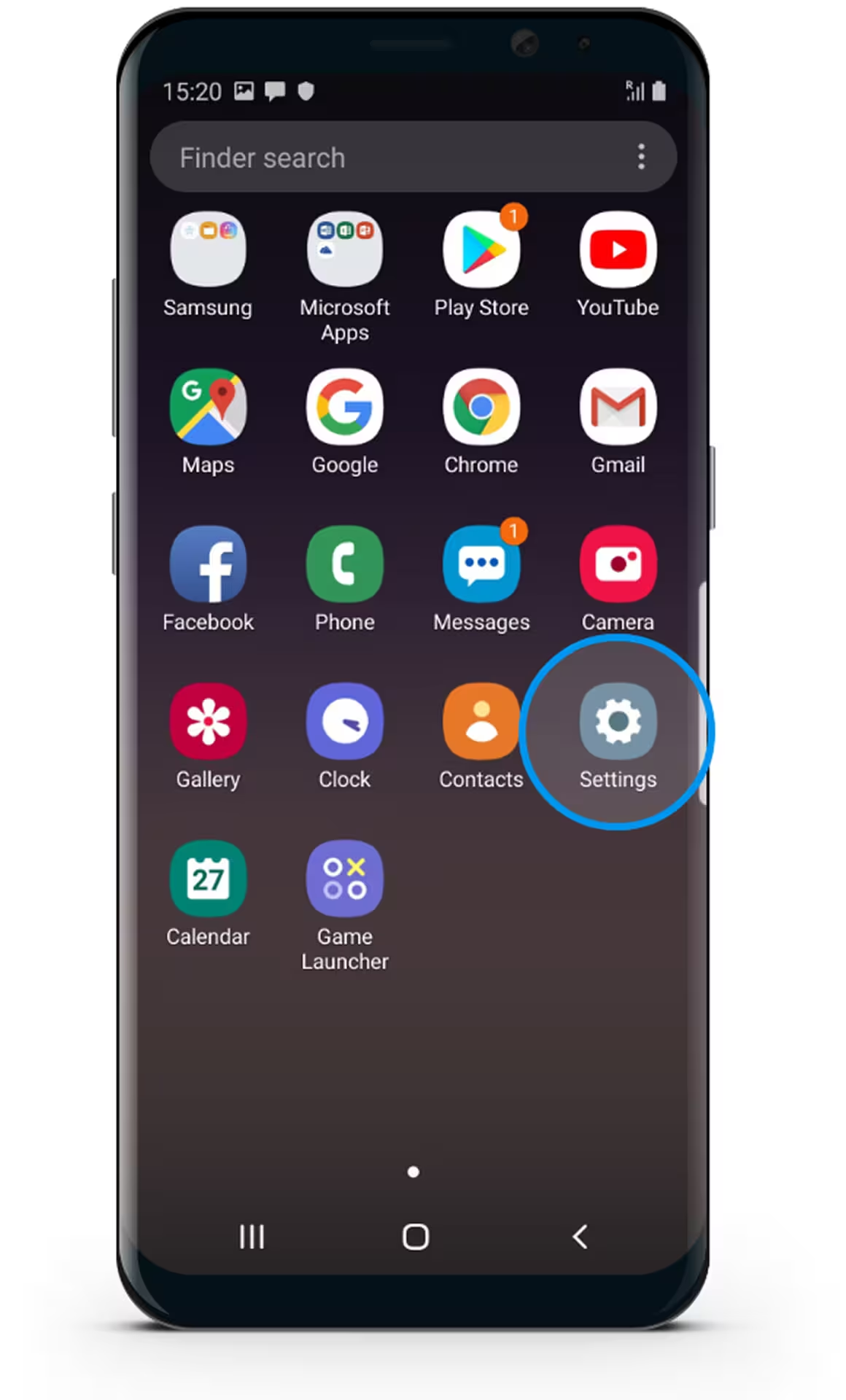
Select Settings

Android smartphone home screen displaying various app icons with the Settings app highlighted by a blue circle.
Step 02

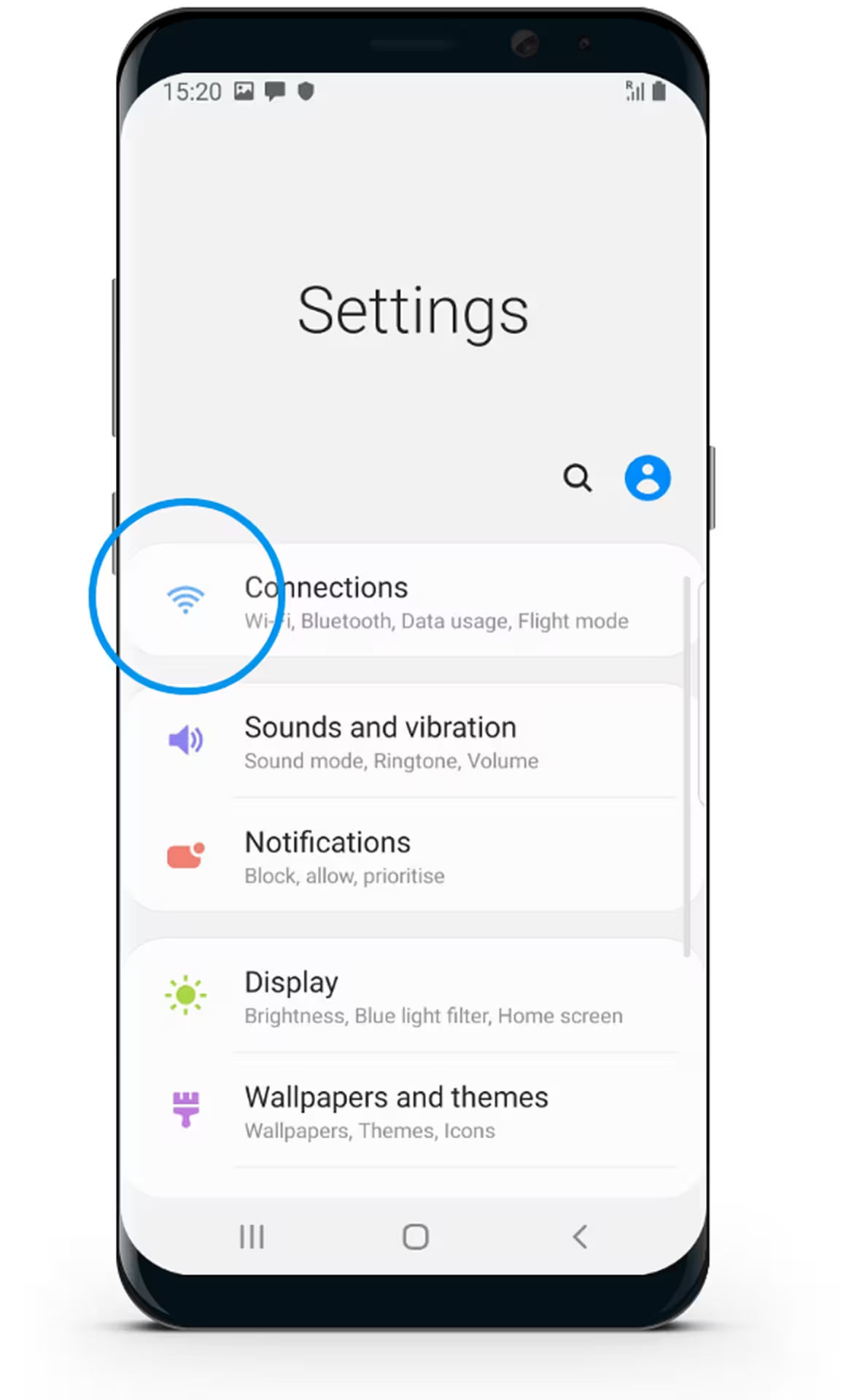
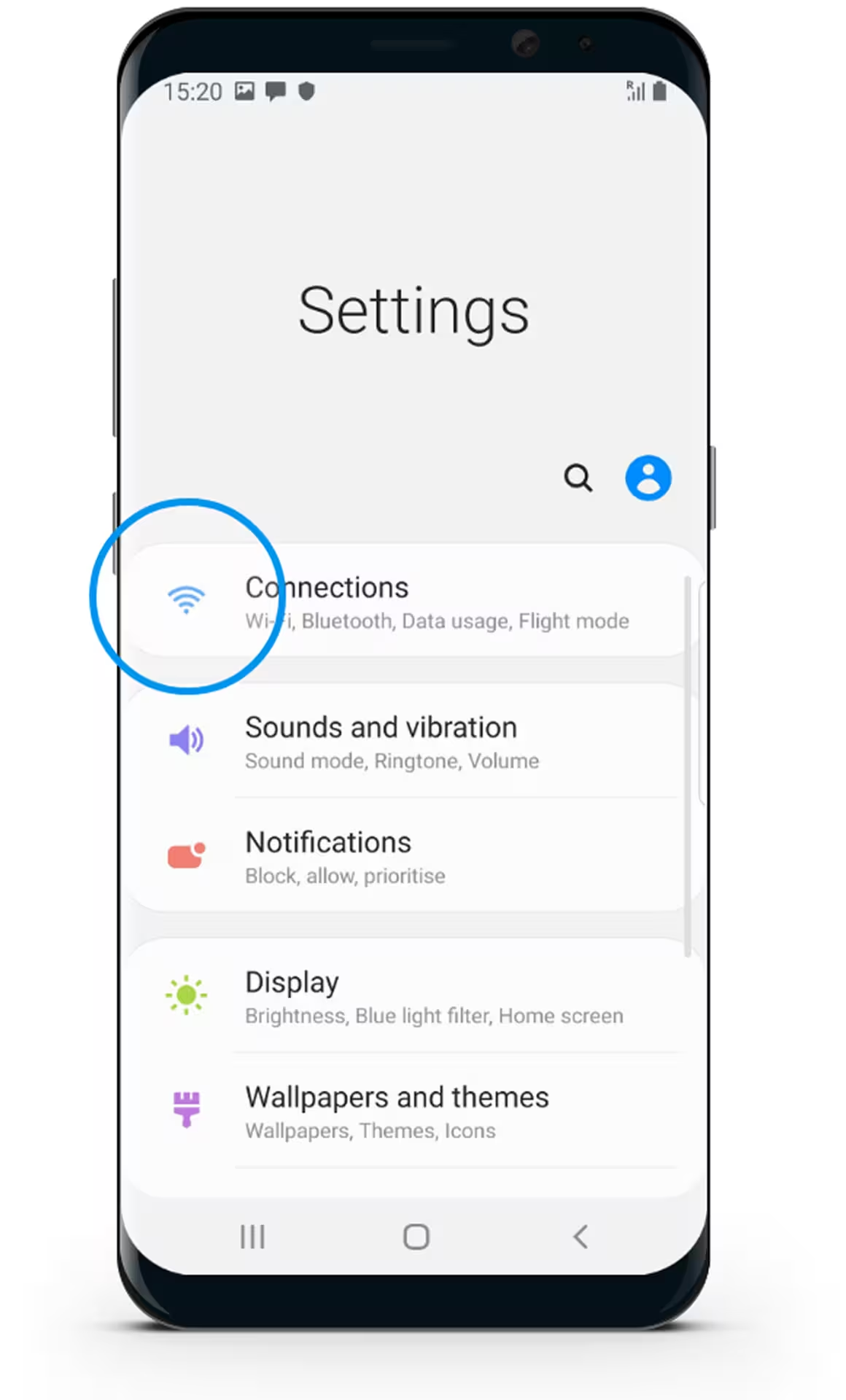
Select Connections

Android smartphone displaying the Settings menu with options for Connections, Sounds and vibration, Notifications, Display, and Wallpapers and themes.
Step 03

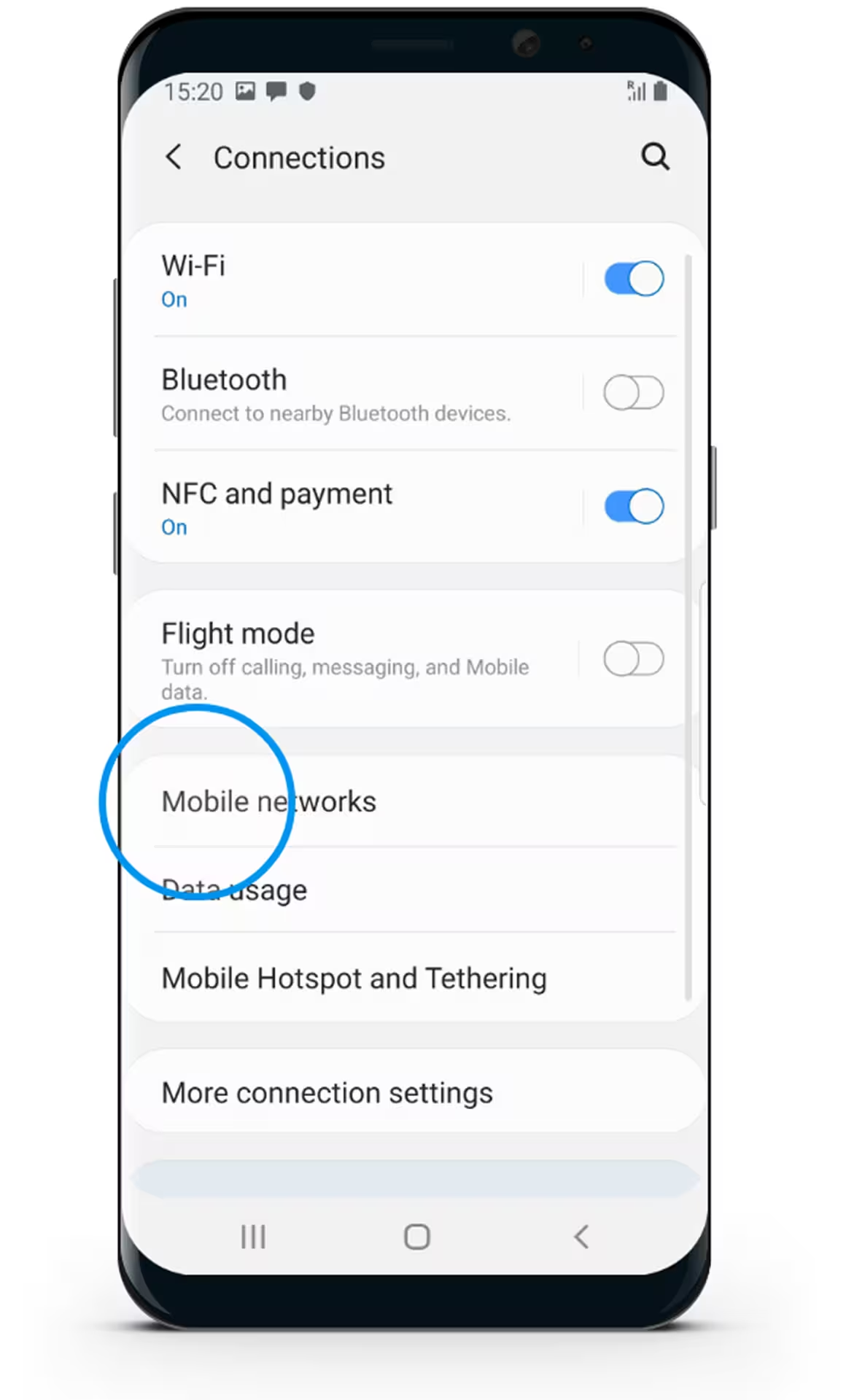
Select Mobile networks

Android phone screen showing Connections settings with Wi-Fi and NFC enabled, Bluetooth and Flight mode off, and a blue circle highlighting Mobile networks option.
Step 04

Select Access Point Names

Android phone screen showing Mobile networks settings with Data roaming off and Access Point Names option circled in blue.
Step 05

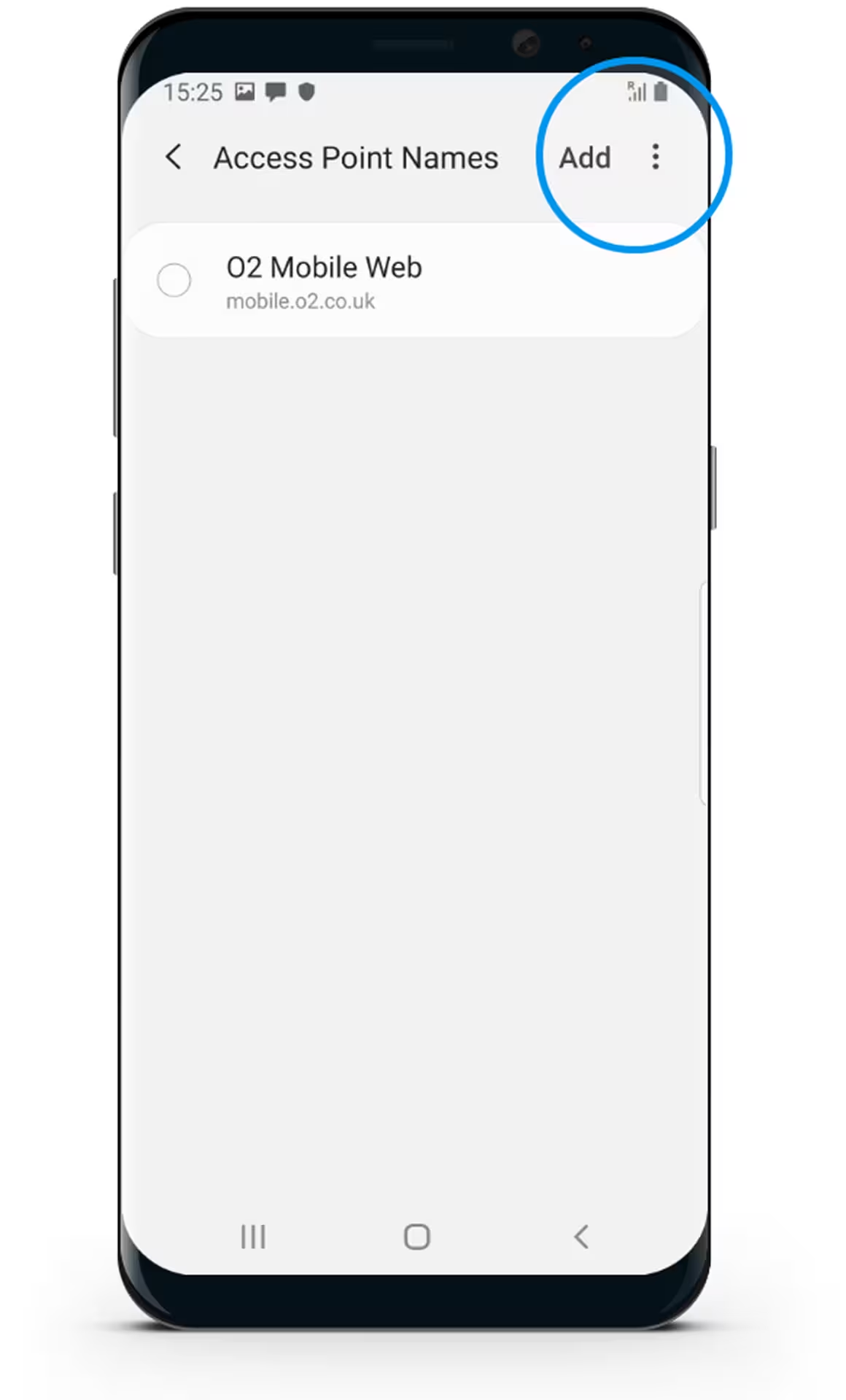
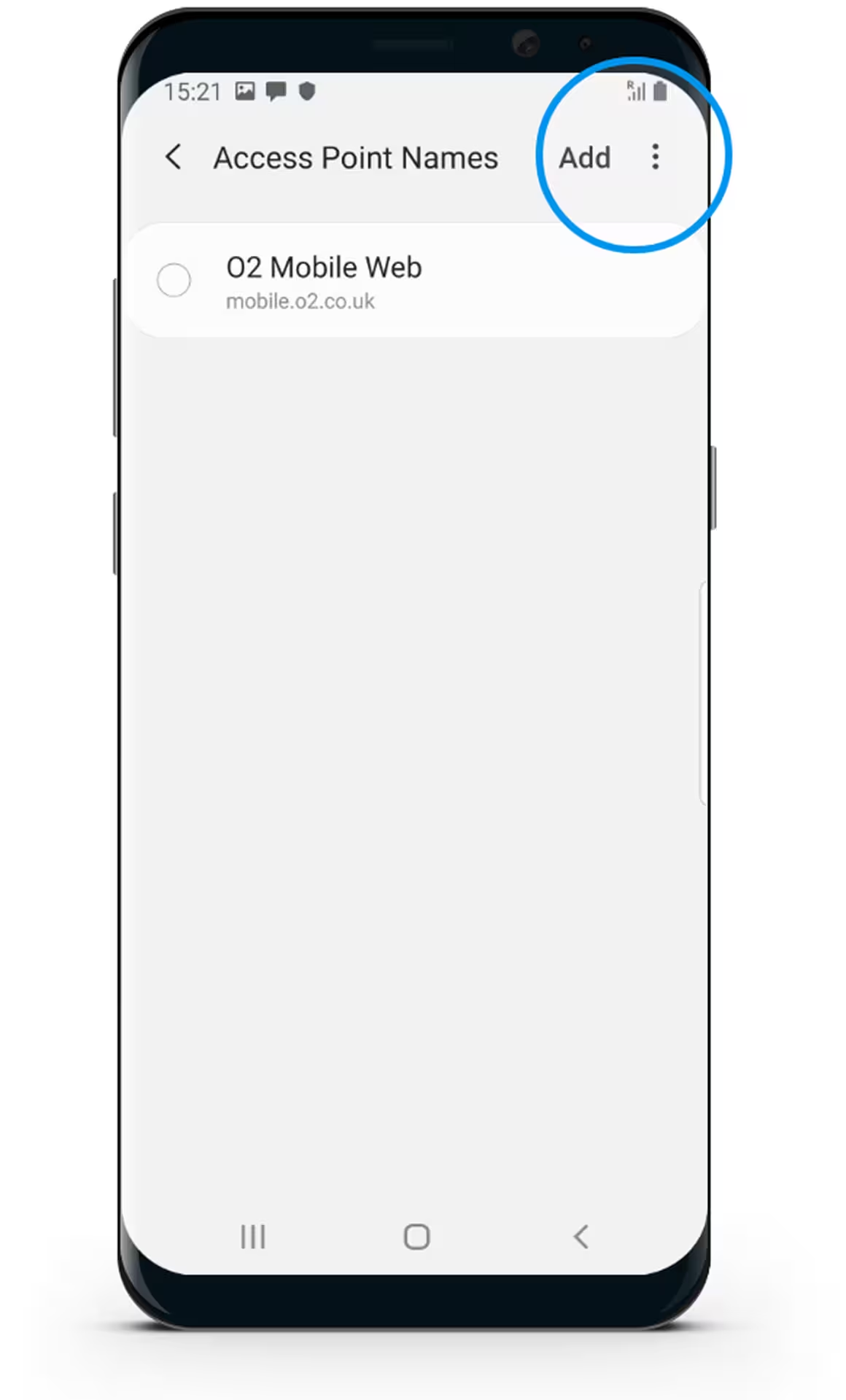
Select the Menu button

Android phone screen showing Access Point Names settings with O2 Mobile Web selected and Add option highlighted.
Step 06

Select Reset to default

Android smartphone screen showing Access Point Names settings with option to reset to default and O2 Mobile Web selected.
Step 07

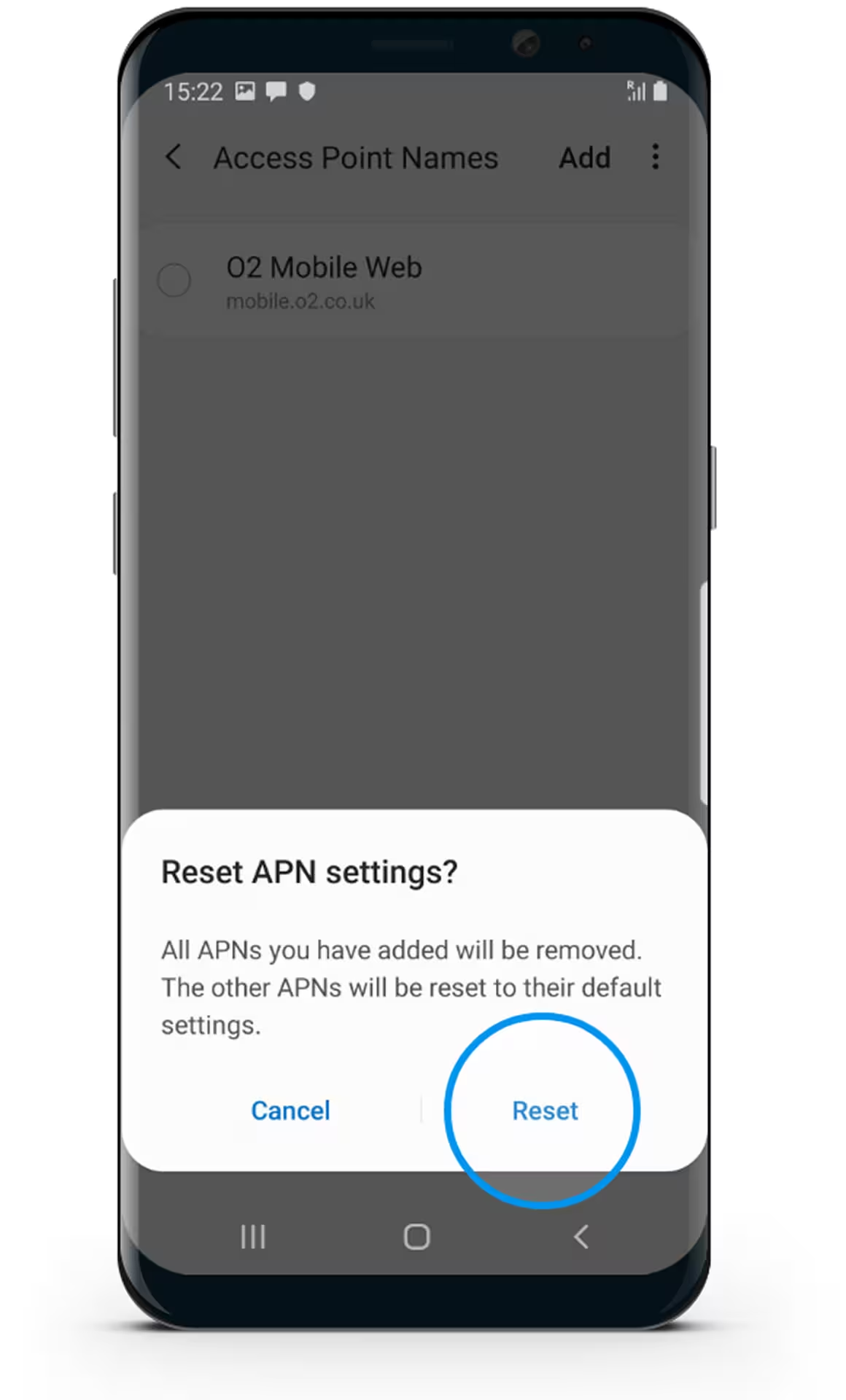
Select Reset - Your phone will reset to default Internet and MMS settings.
Smartphone screen showing a confirmation prompt to reset APN settings with options Cancel and Reset.
Step 08

Select Add

Android phone screen showing Access Point Names settings with O2 Mobile Web selected and Add button circled.
Step 09

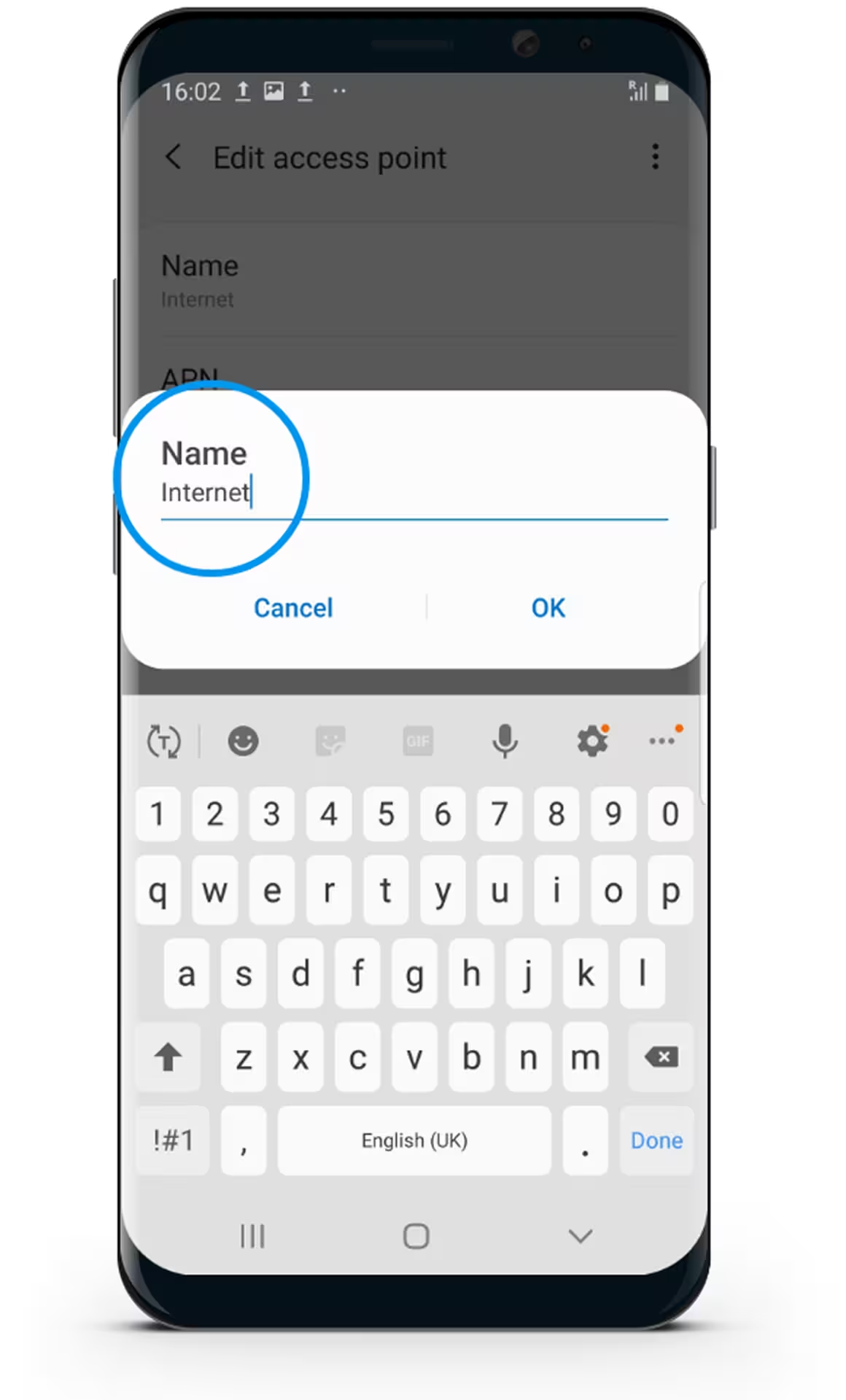
Select Name & Enter "Internet”

Samsung smartphone screen showing 'Edit access point' with a popup to edit the Name field set to 'Internet' and keyboard open.
Step 10

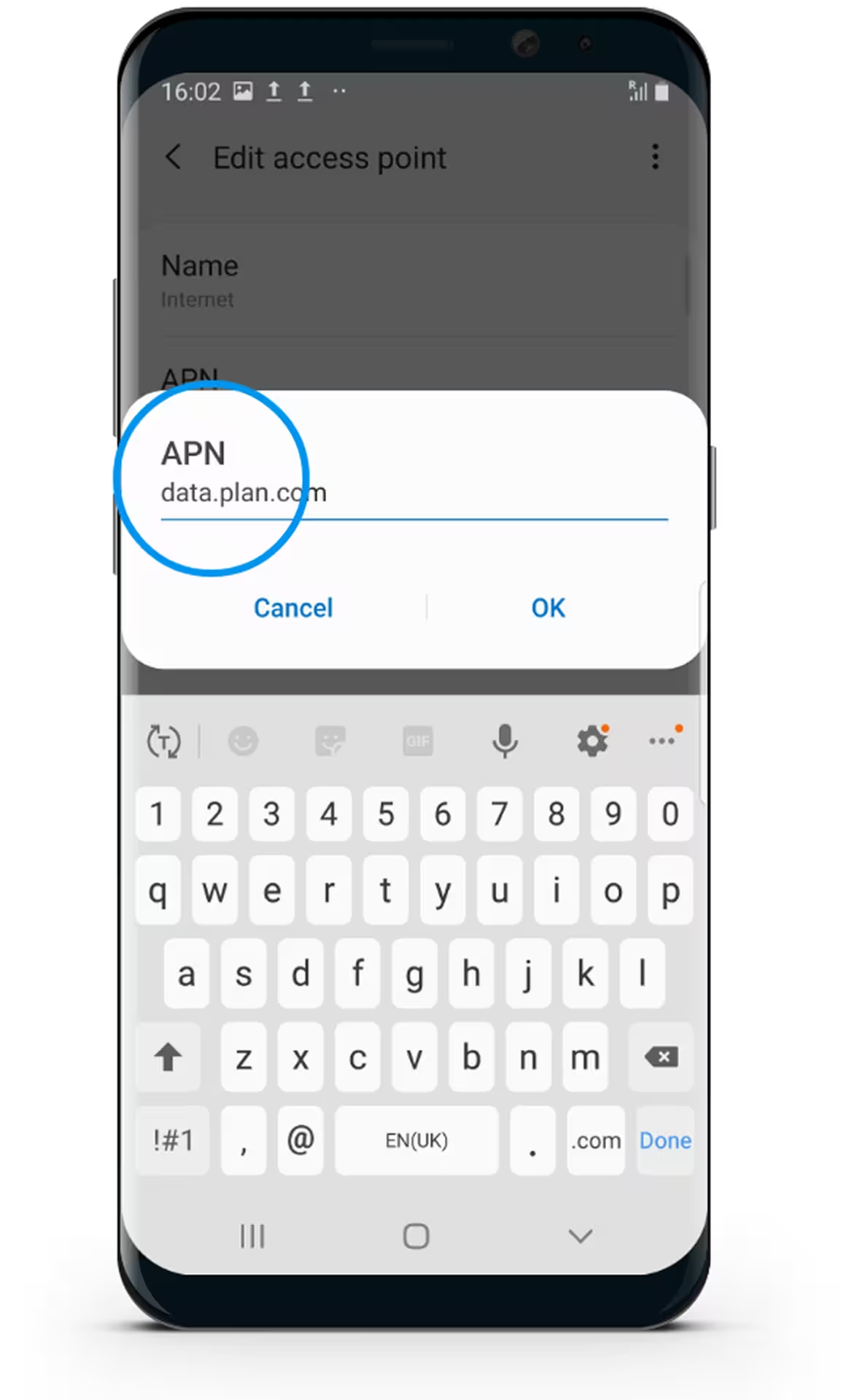
Select APN & Enter "data.plan.com"

Samsung smartphone screen showing 'Edit access point' with APN field set to data.plan.com and a keyboard below.
Step 11

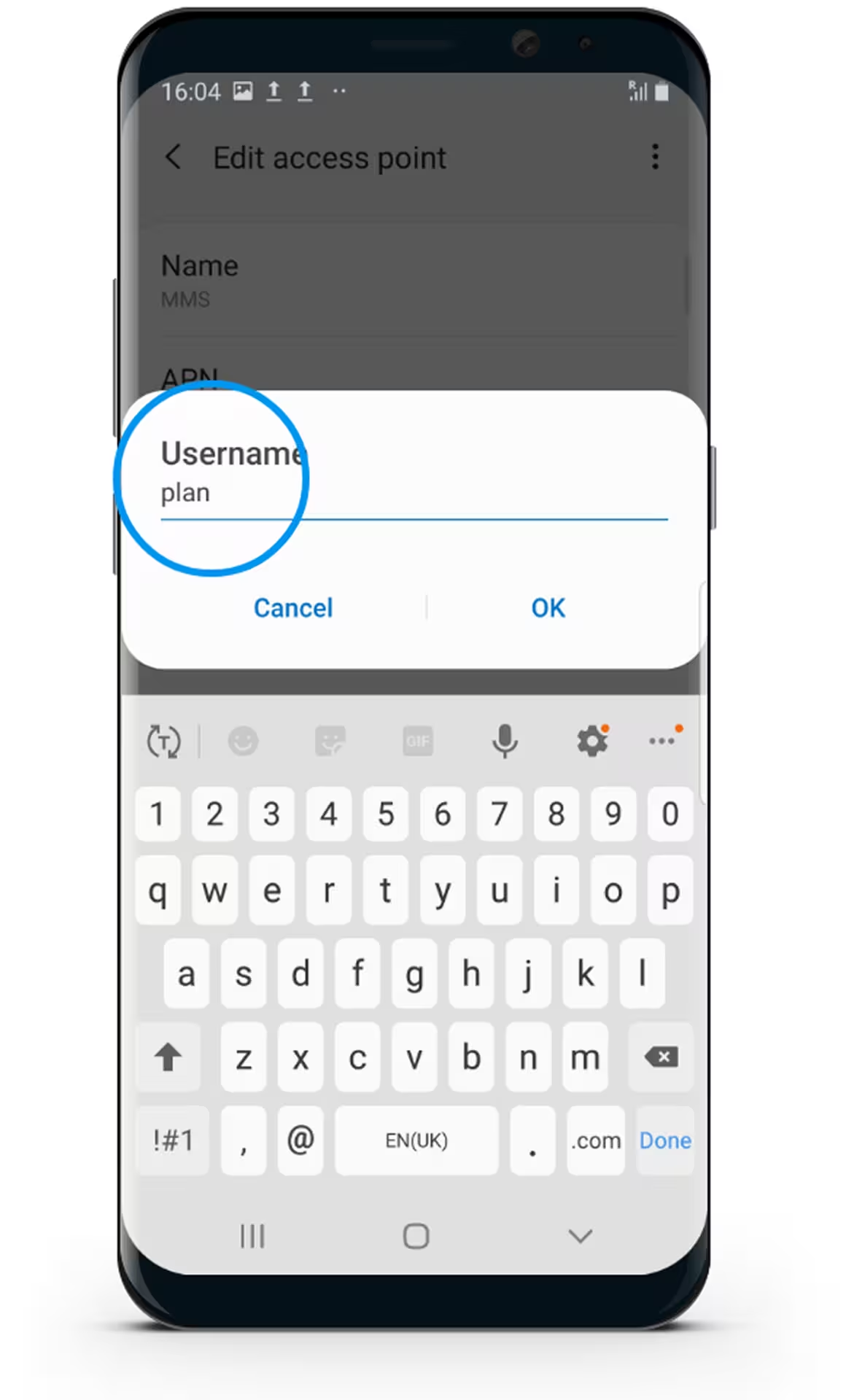
Select Username & Enter "plan"

Samsung smartphone screen showing a keyboard and an edit access point dialog with username field filled as 'plan'.
Step 12

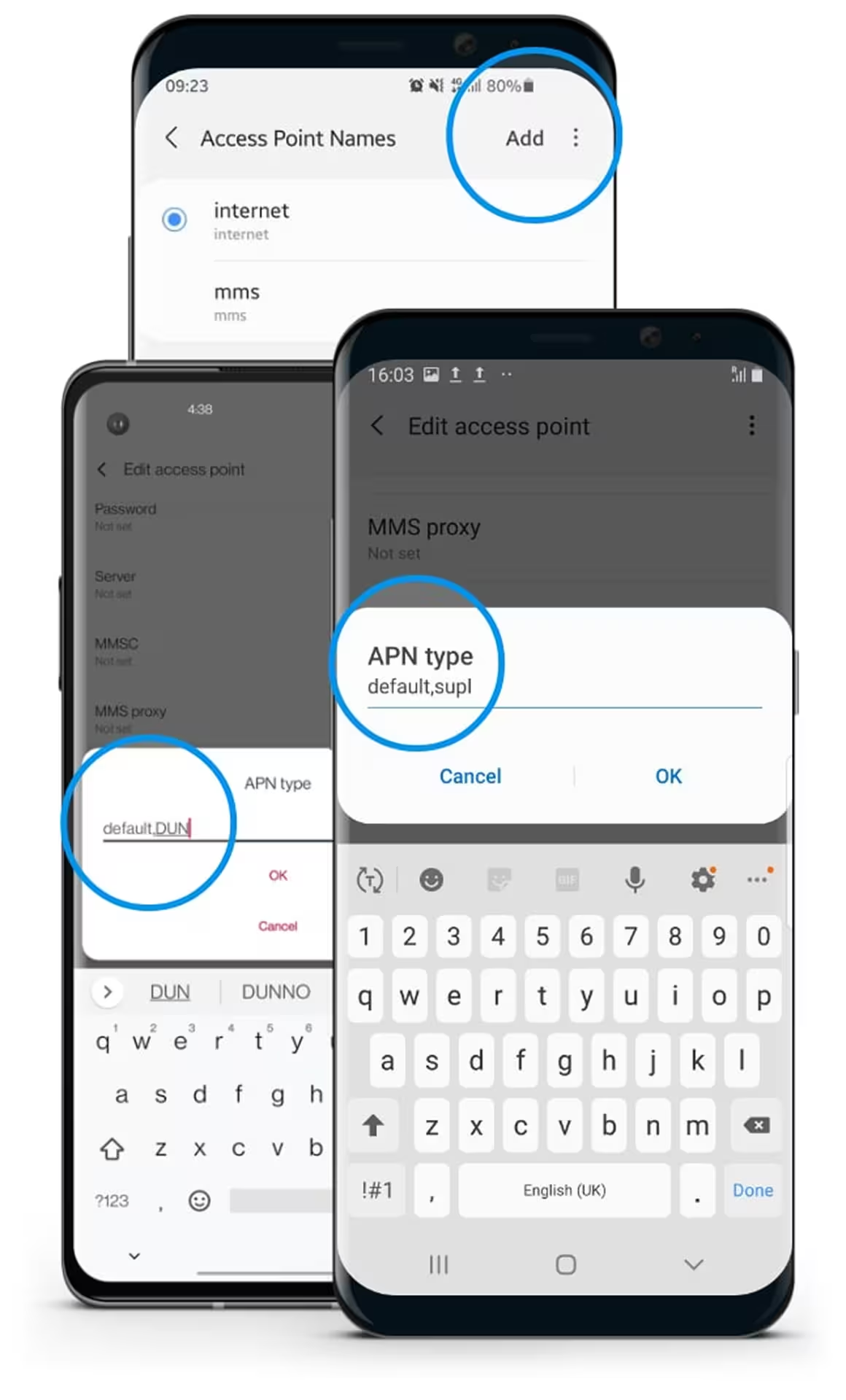
Depending on your device, in the "APN type" filed, either select "internet" or if using a Samsung device, enter "default,supl" & using a OnePlus or Google Pixel device, enter "default,DUN" then press ok
Three smartphones showing the editing of APN type settings in mobile network access points with 'default,supl' highlighted.
Step 13

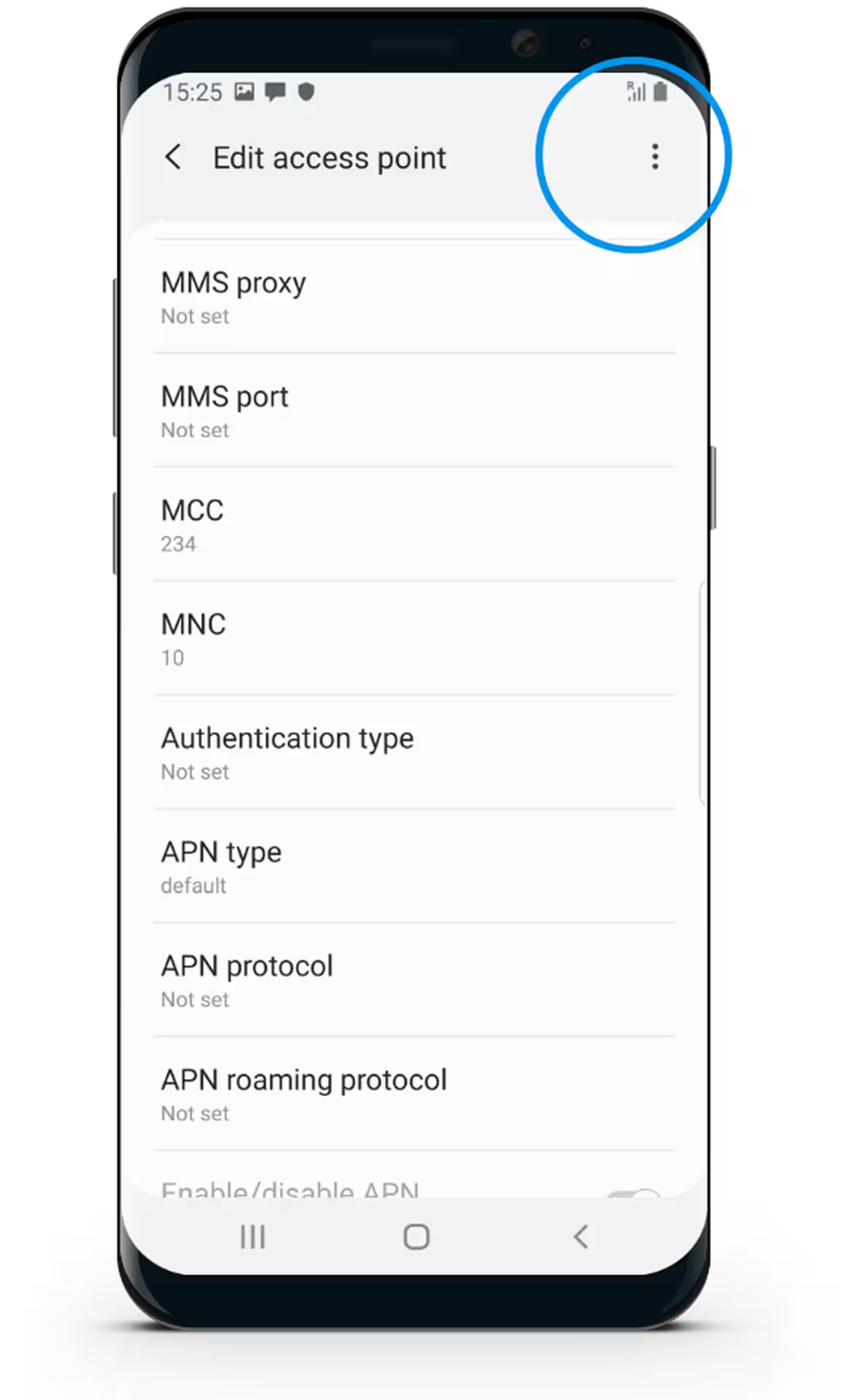
Select the Menu button

Smartphone screen displaying Edit Access Point settings with options like MMS proxy, MMS port, MCC 234, MNC 10, Authentication type, APN type, APN protocol, and APN roaming protocol.
Step 14

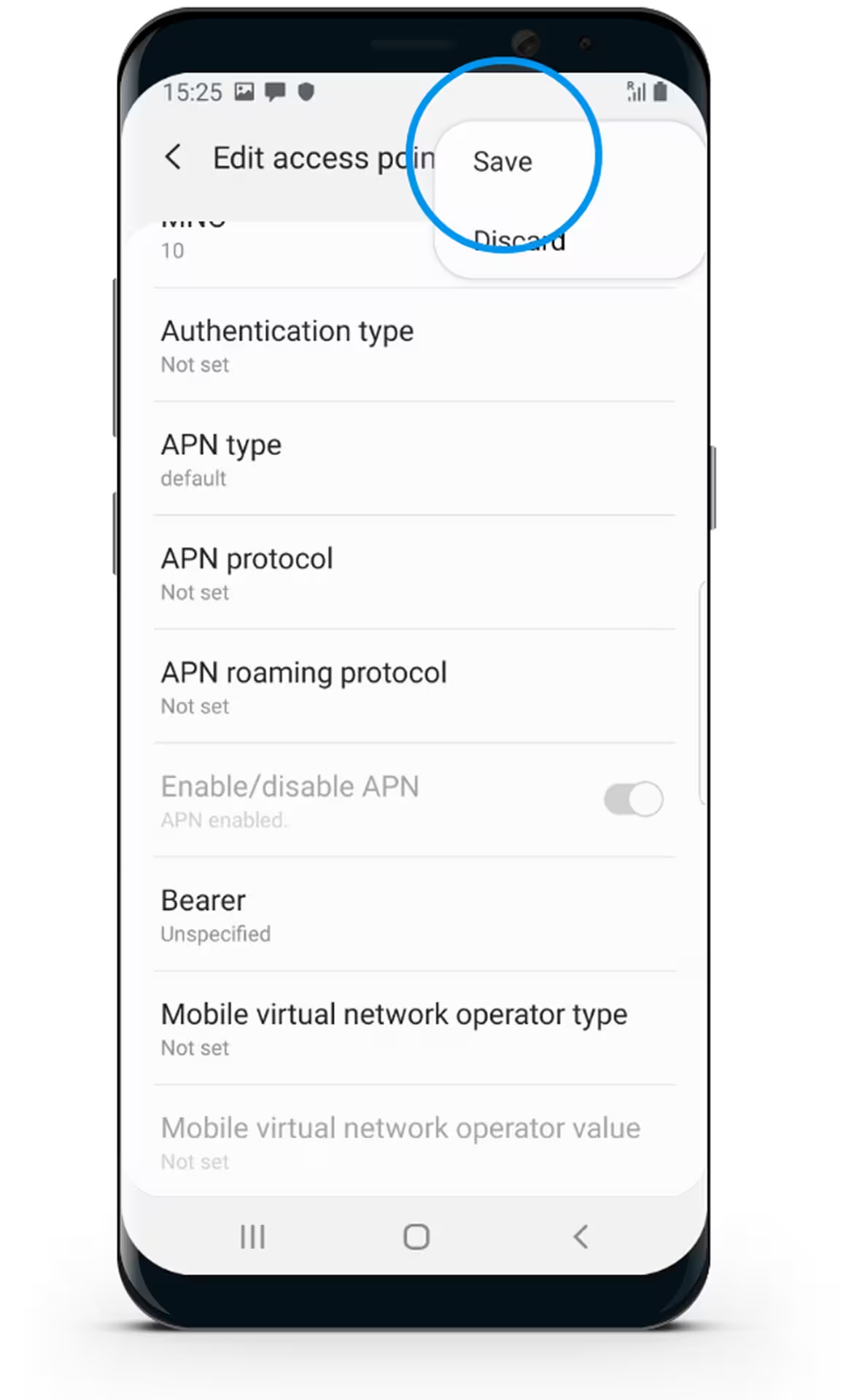
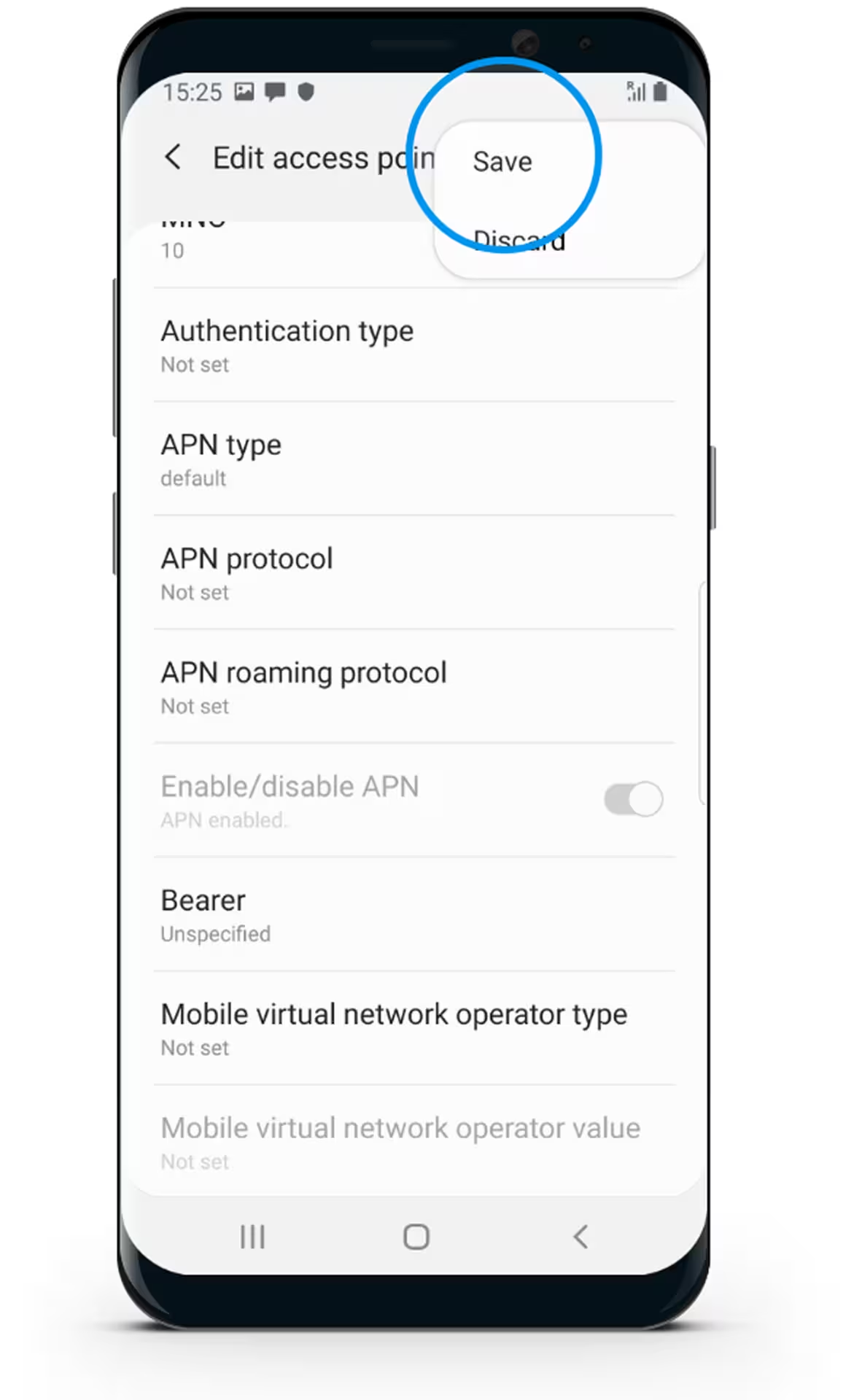
Select Save

Smartphone screen showing APN settings with Save option in menu highlighted.
Step 15

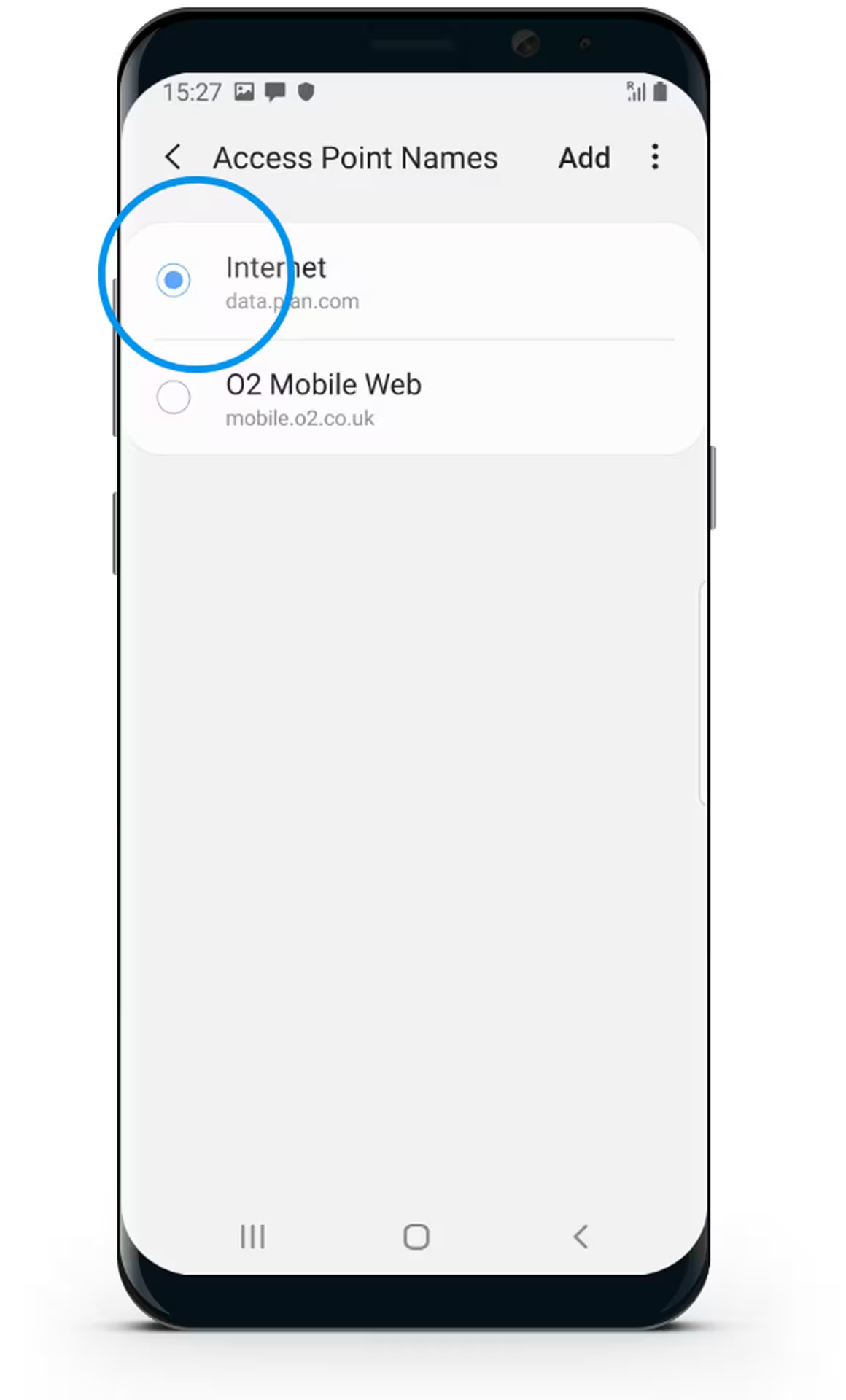
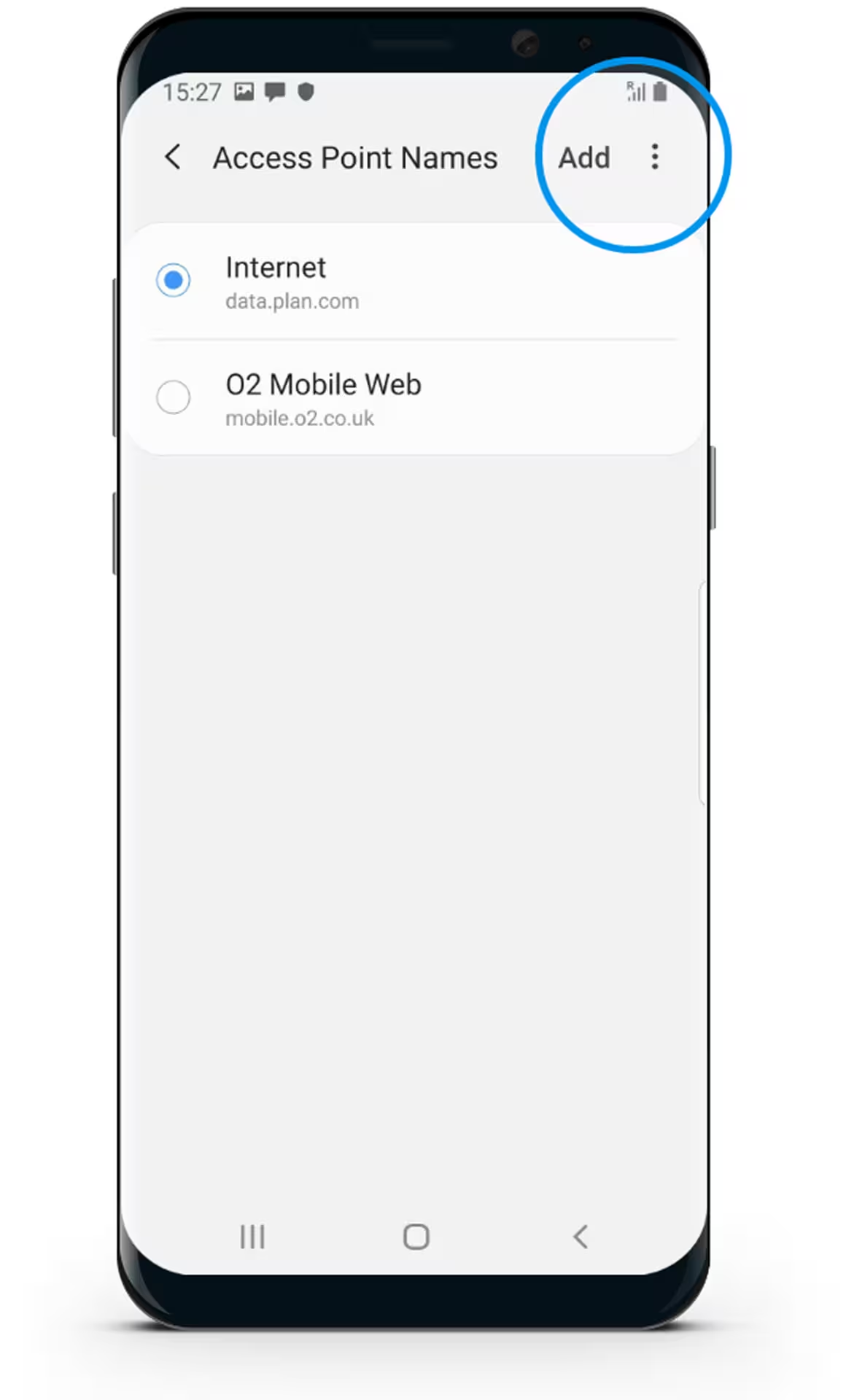
Select “Internet”

Android phone screen showing Access Point Names settings with 'Internet' selected and 'O2 Mobile Web' as an option.
Step 16

Select Save

Smartphone screen showing APN settings with Save option in menu highlighted.
Step 17

Your phone has now been set up to Internet
Android smartphone displaying the Settings menu with options for Connections, Sounds and vibration, Notifications, Display, and Wallpapers and themes.
Step 18

In Access Point Names, Select Add

Smartphone screen showing Access Point Names settings with Internet and O2 Mobile Web options, and an Add button circled.
Step 19

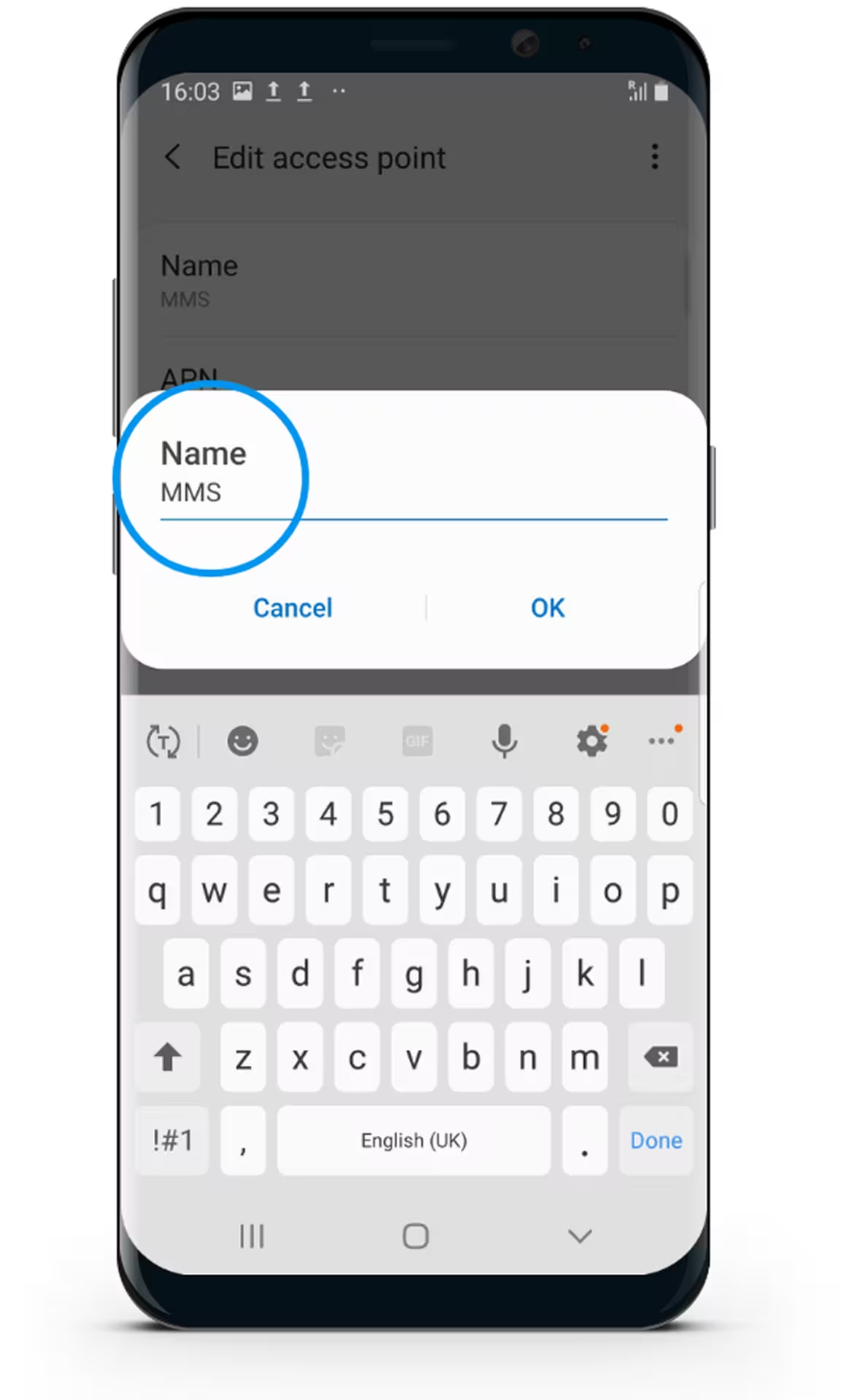
Select Name & Enter "MMS"

Mobile phone screen showing 'Edit access point' dialogue with the name field set to MMS and a keyboard displayed below.
Step 20

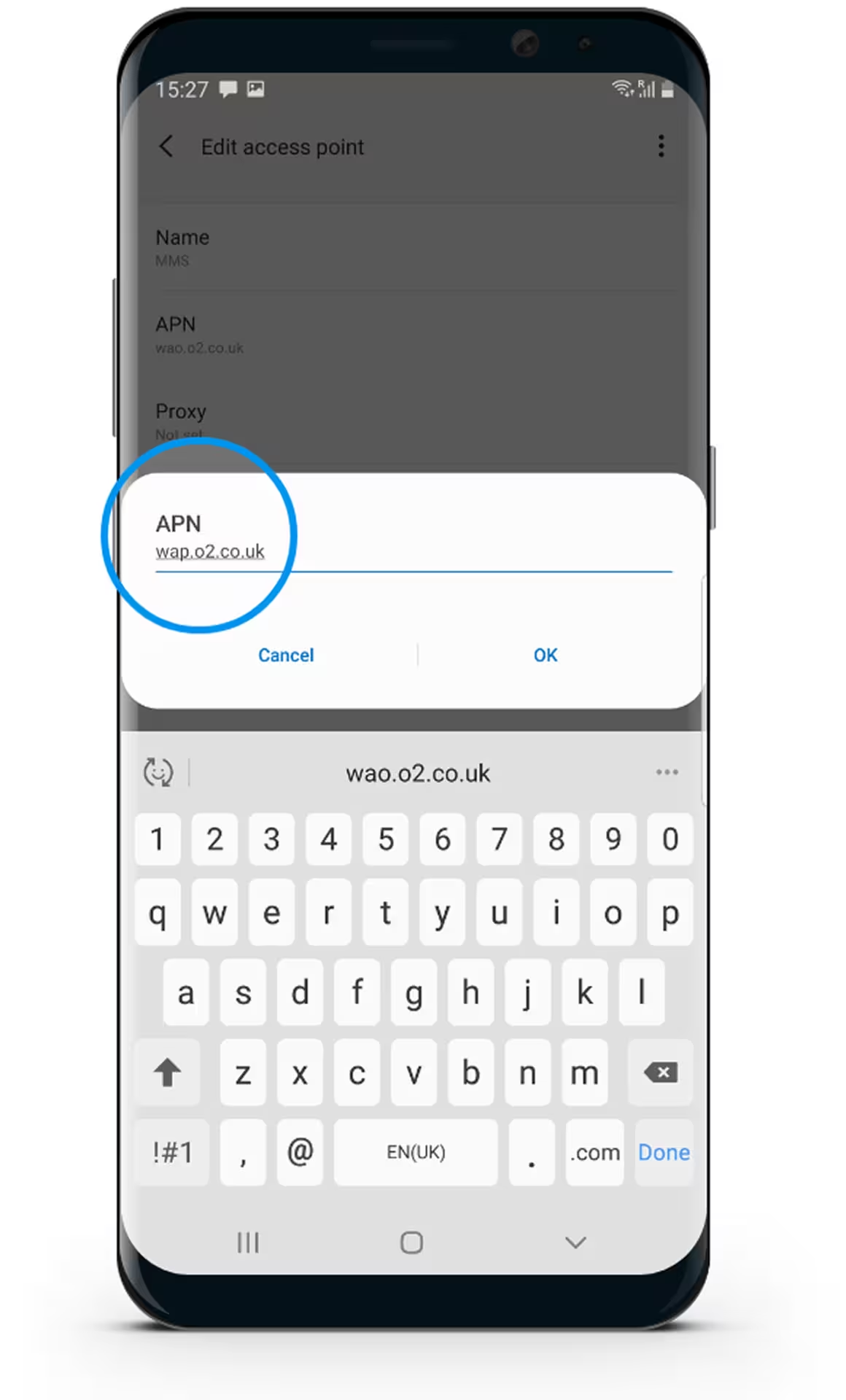
Select APN & Enter "wap.o2.co.uk"

Android phone screen showing an Edit Access Point dialog with APN set to wap.o2.co.uk and a keyboard at the bottom.
Step 21

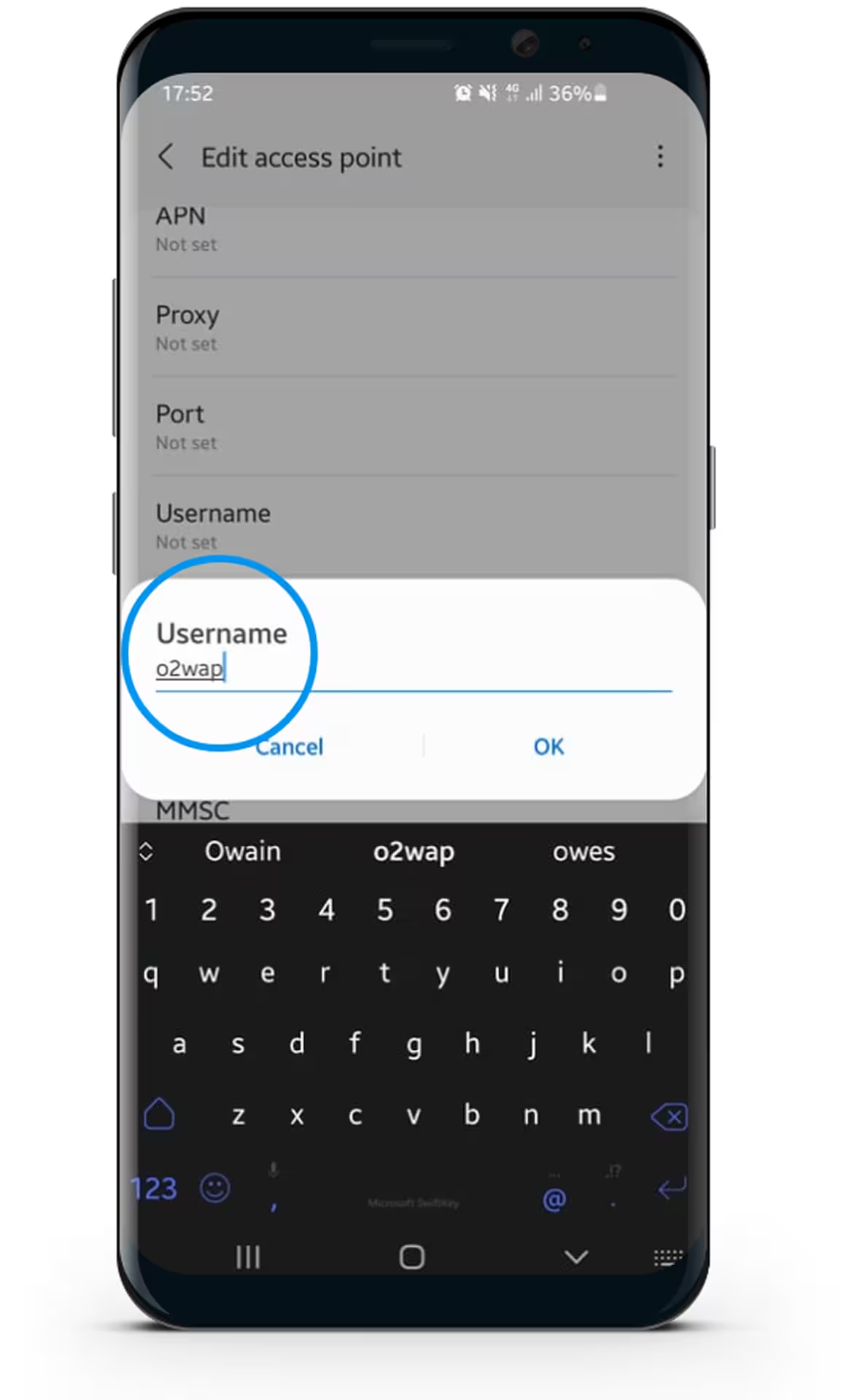
Select Username & Enter "02wap"

Samsung smartphone screen showing "Edit access point" settings with a pop-up to enter Username 'o2wap' and on-screen keyboard.
Step 22

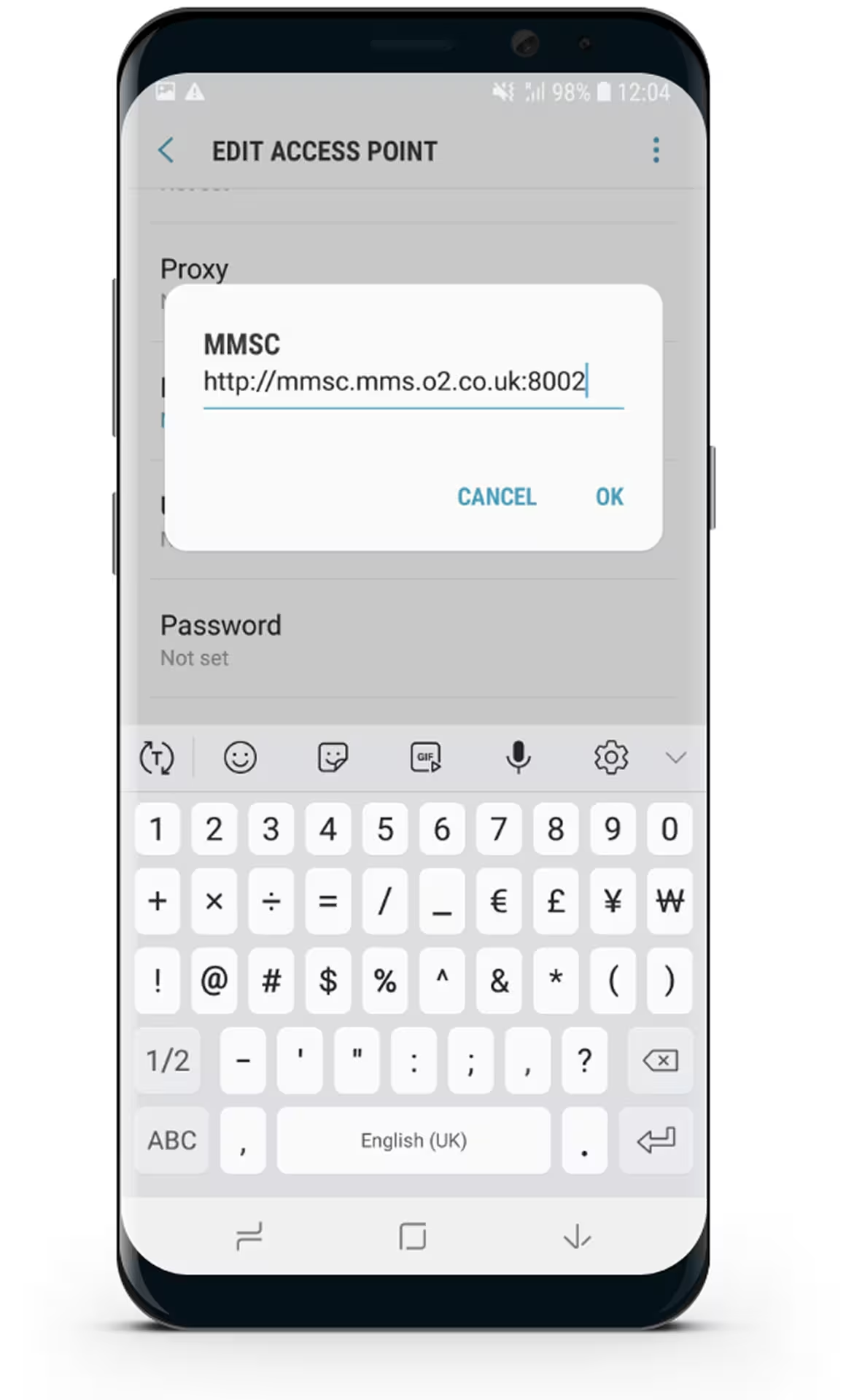
Select MMSC & Enter “http://mmsc.mms.o2.co.uk:8002”
Android phone screen showing an Edit Access Point dialog for MMSC with URL http://mmsc.mms.o2.co.uk:8002 and a visible keyboard in English UK layout.
Step 23

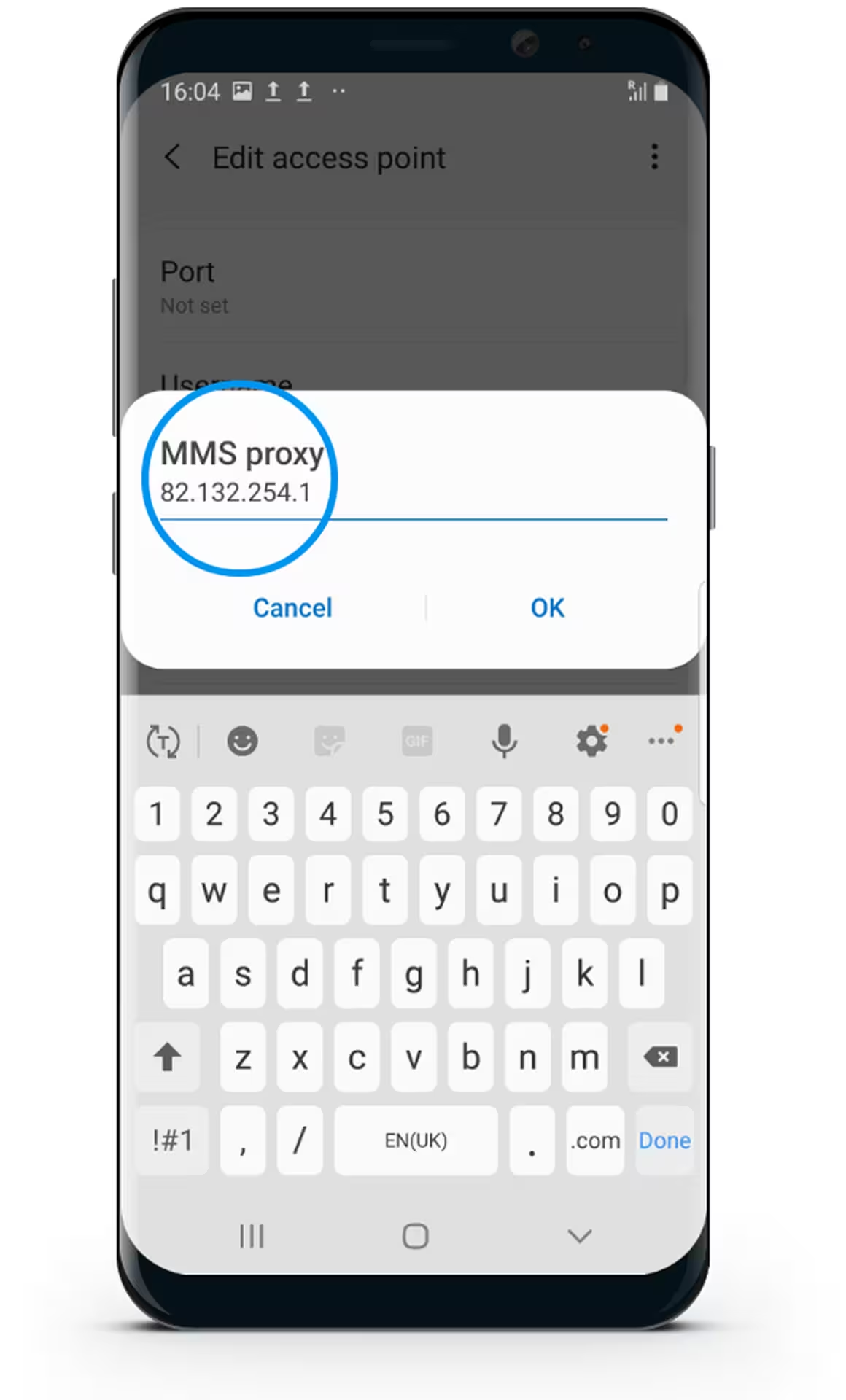
Scroll down and select MMS Proxy & Enter "82.132.254.1"
Android phone screen showing an 'Edit access point' dialog with MMS proxy IP address 82.132.254.1 being edited, and options to Cancel or OK.
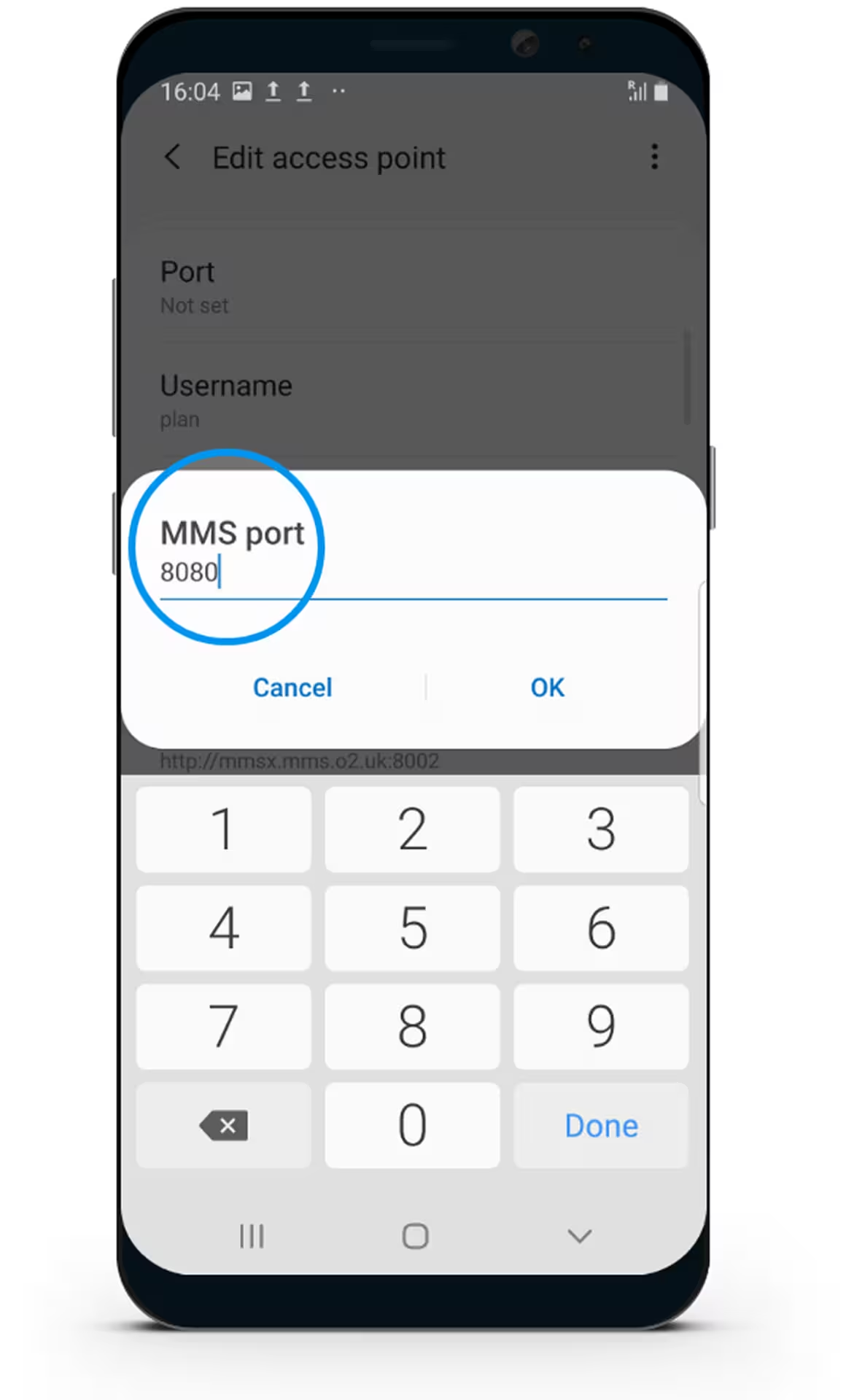
Step 24

Select MMS Port & Enter "8080"

Android phone screen displaying an Edit access point dialog focused on setting MMS port to 8080 with numeric keyboard.
Step 25

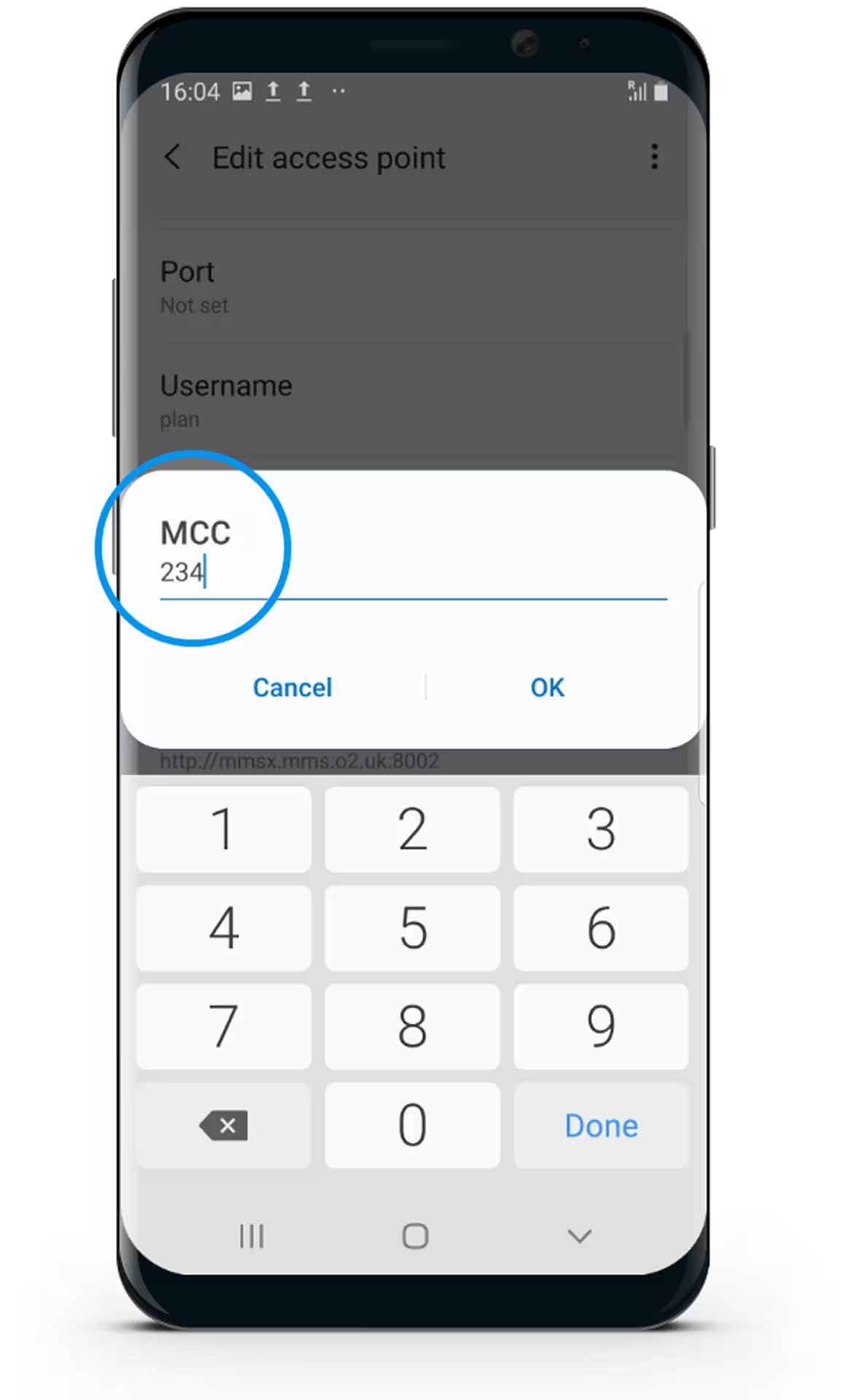
Select MCC & Enter "234"

Android smartphone screen showing an 'Edit access point' dialog with a numeric keypad and MCC value being set to 234.
Step 26

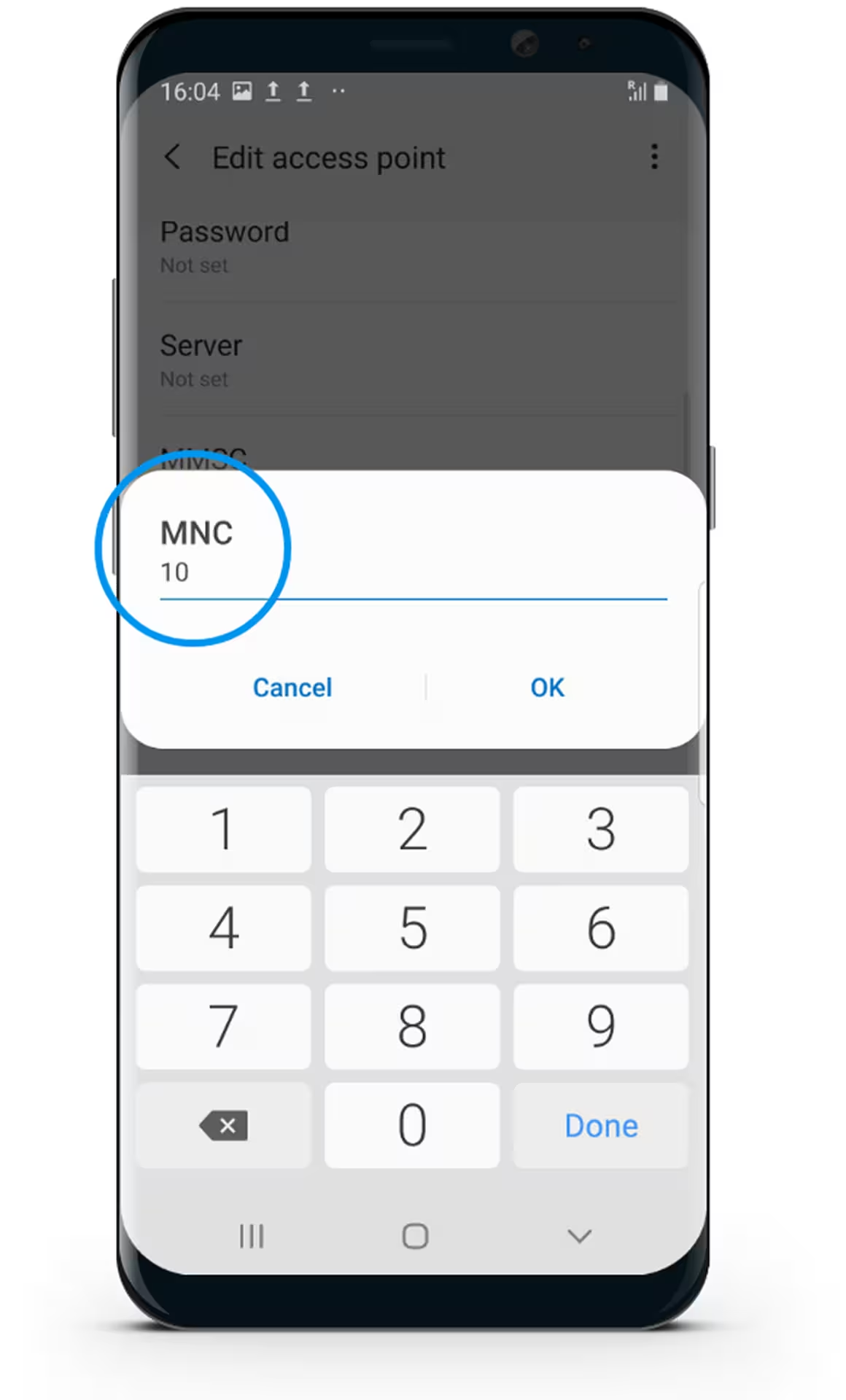
Select MNC & Enter "10"

Android smartphone screen showing 'Edit access point' settings with a popup to enter MNC value of 10 and an on-screen numeric keyboard.
Step 27

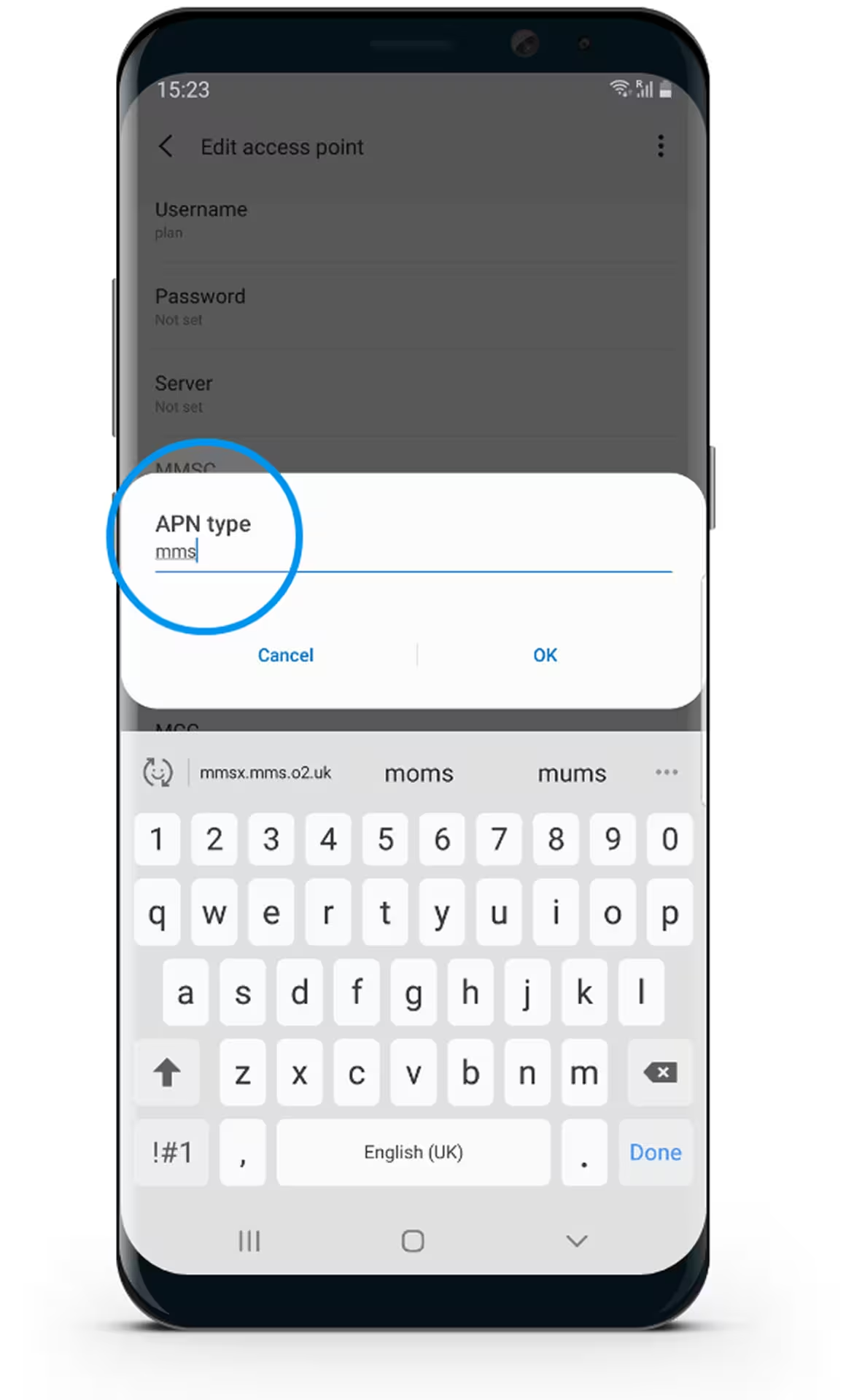
Select APN Type & Enter "mms"

Smartphone screen showing APN type field with 'mms' entered, over a keyboard with English (UK) layout.
Step 28

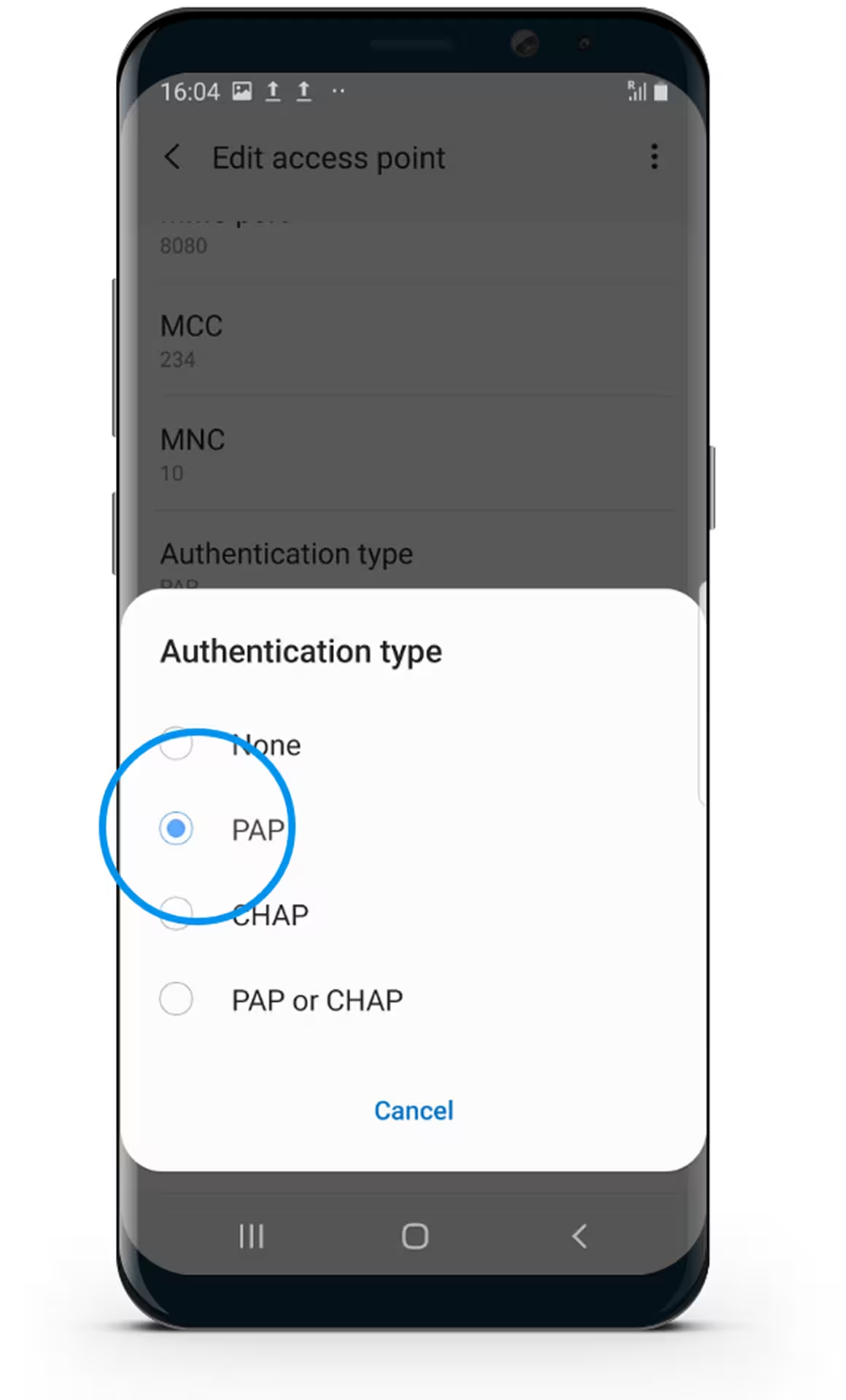
Select Authentication Type & Select "PAP"
Smartphone screen showing 'Edit access point' settings with a pop-up menu for selecting authentication type, with 'PAP' option selected.
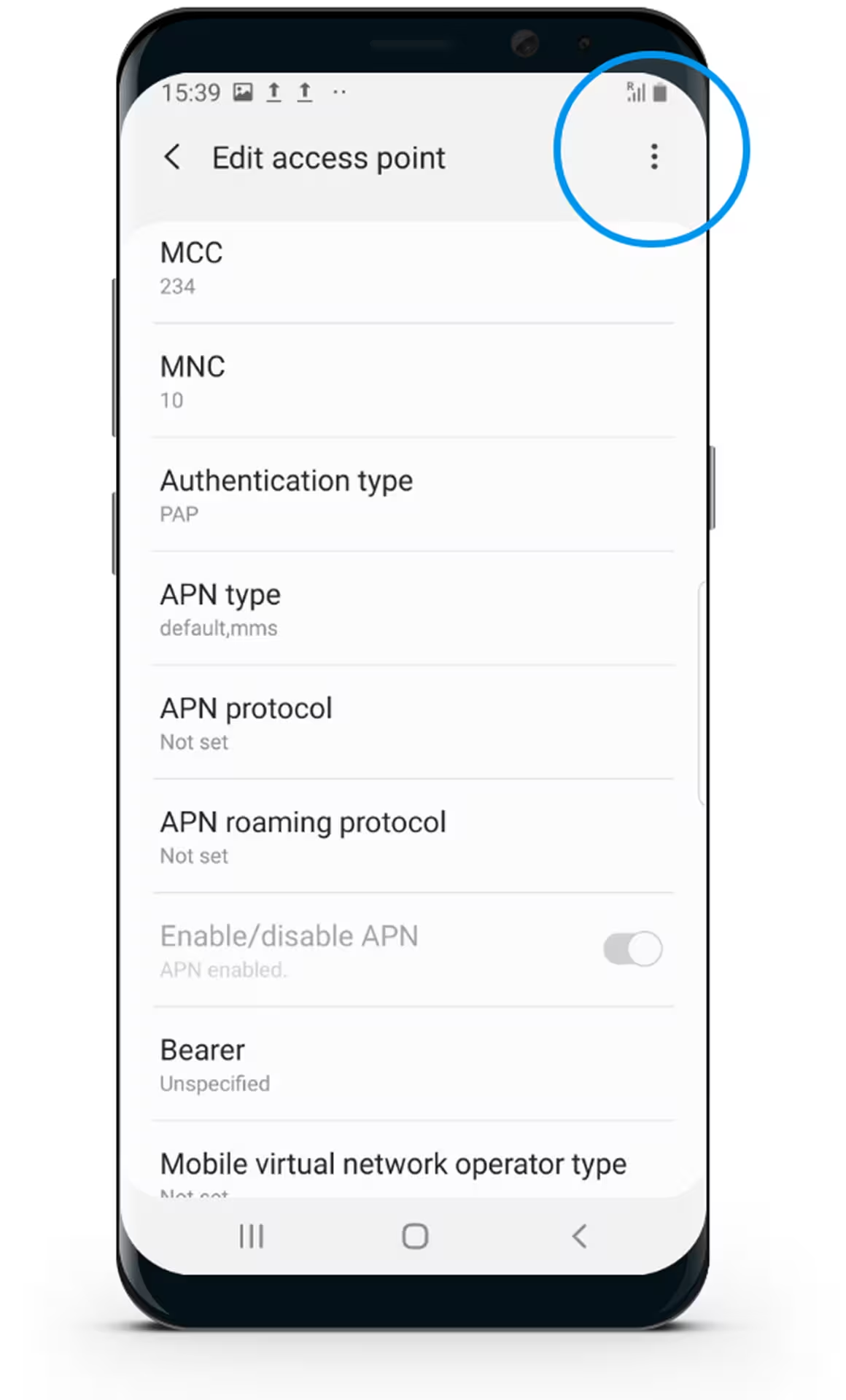
Step 29

Select the Menu button

Samsung smartphone screen showing 'Edit access point' settings with options such as MCC, MNC, Authentication type, APN type, and others.
Step 30

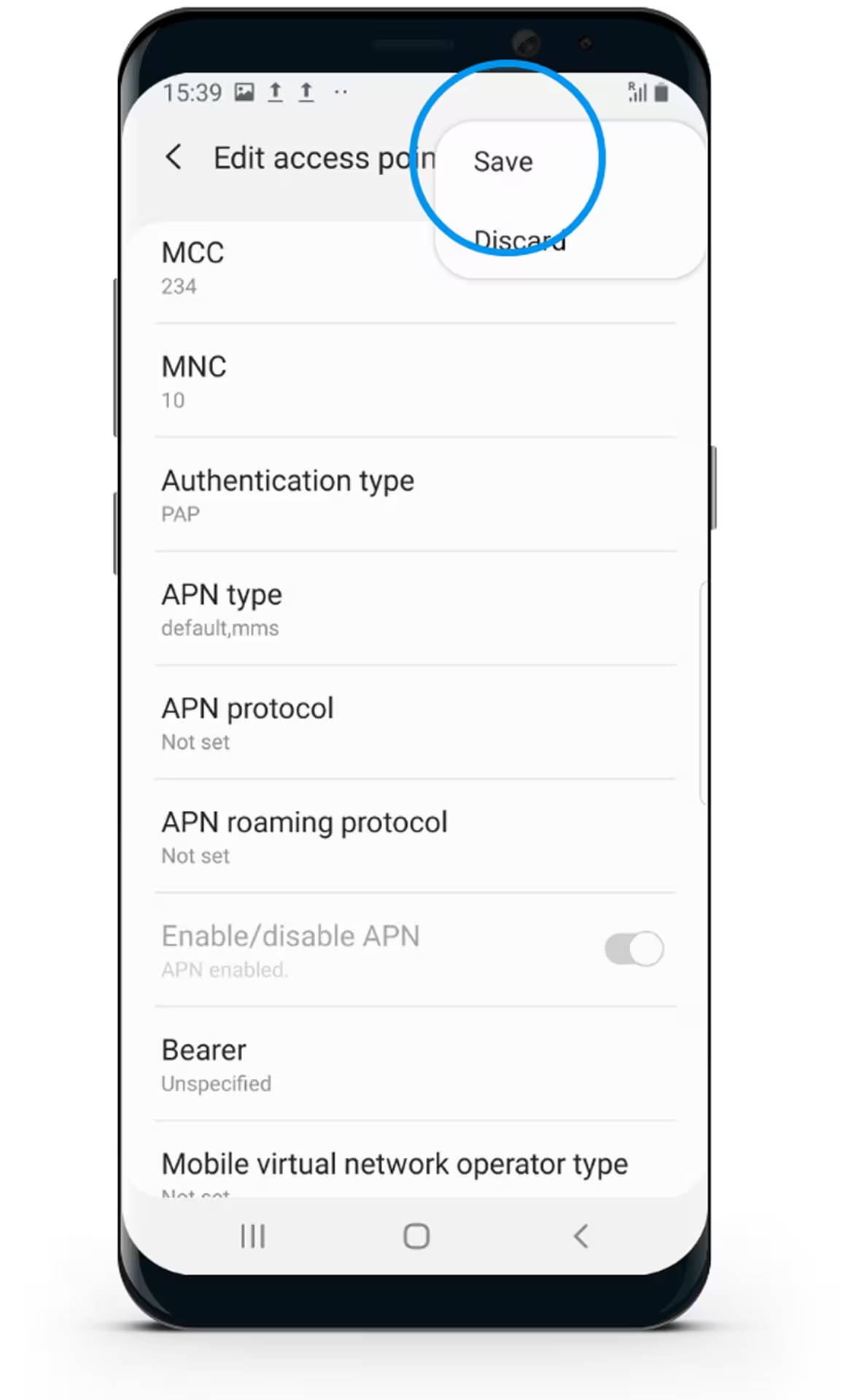
Select Save

Smartphone screen displaying 'Edit access point' settings with fields like MCC, MNC, authentication type, APN type, protocol, and a 'Save' option highlighted.
Step 31

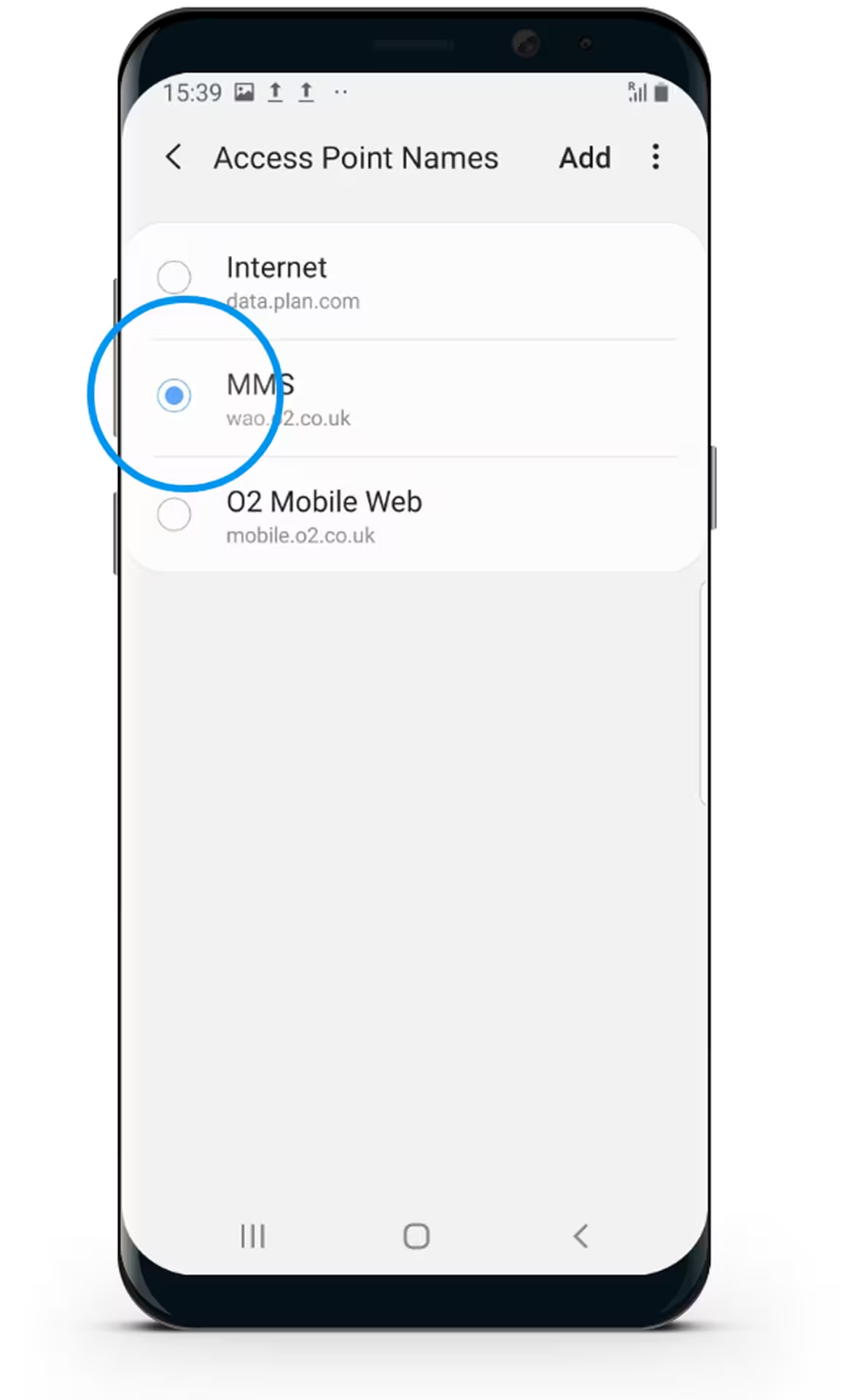
Select “MMS”

Android phone screen showing Access Point Names with MMS option selected.
Step 32

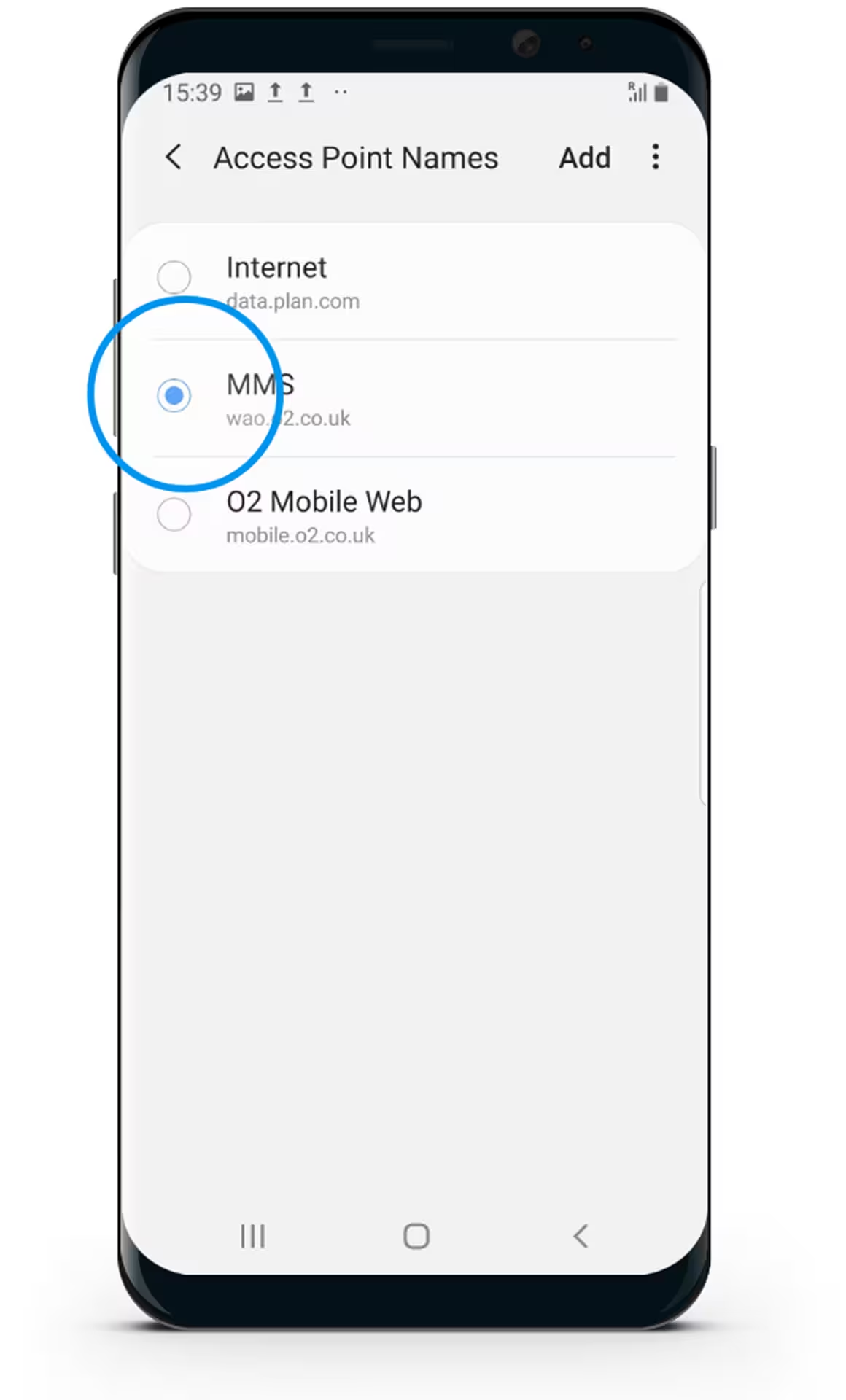
Your phone has now been set up to MMS

Android phone screen showing Access Point Names with MMS option selected.

talk to us

Experience how our powerful platform can transform your business.